Compromise
Compares the evidence with SectraTEK Intelligence, our dated and curated corpus. Each match is graded and arrives with a plain-language explanation.
 SectraTEKby Prudential Associates
One workflow from the first file to the finished report. Every finding is graded, explained in plain language and ready for your decision. Choose SectraTEK Full to keep the whole case, or SectraTEK Lite to go from case creation to results at speed.
Has this device been compromised, and what was within reach? SectraTEK answers both from the evidence and shows you how it got there.
Compares the evidence with SectraTEK Intelligence, our dated and curated corpus. Each match is graded and arrives with a plain-language explanation.
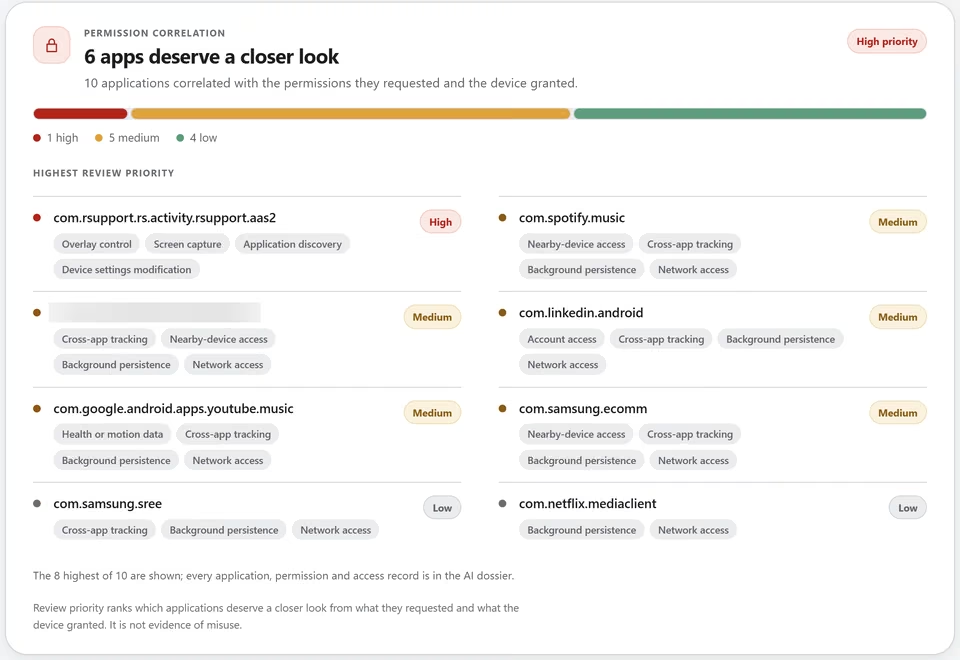
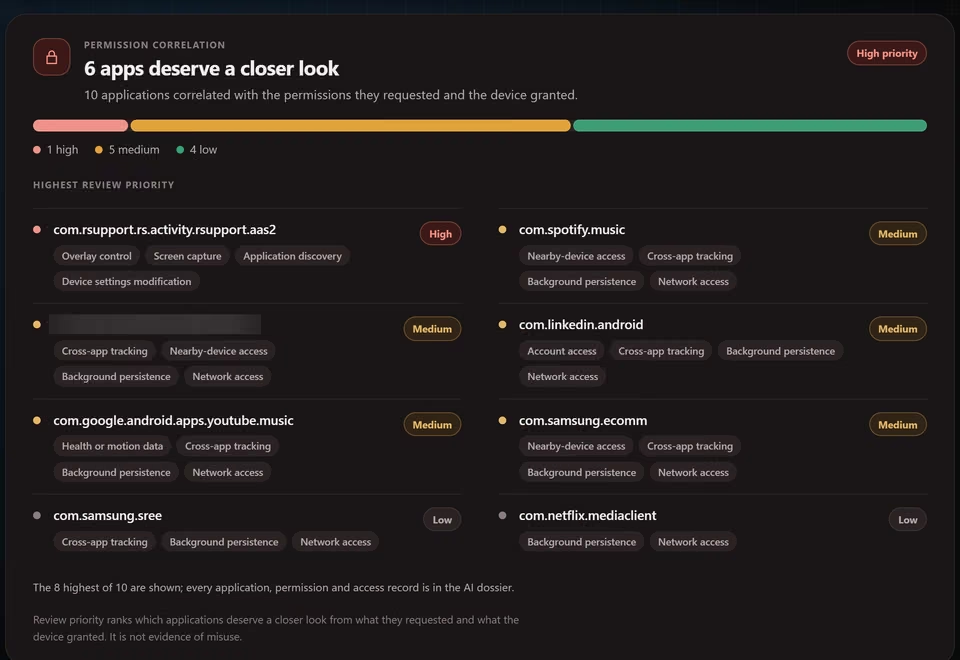
Shows which apps and services could reach which kinds of data, so the answer to what could have been seen rests on the evidence.
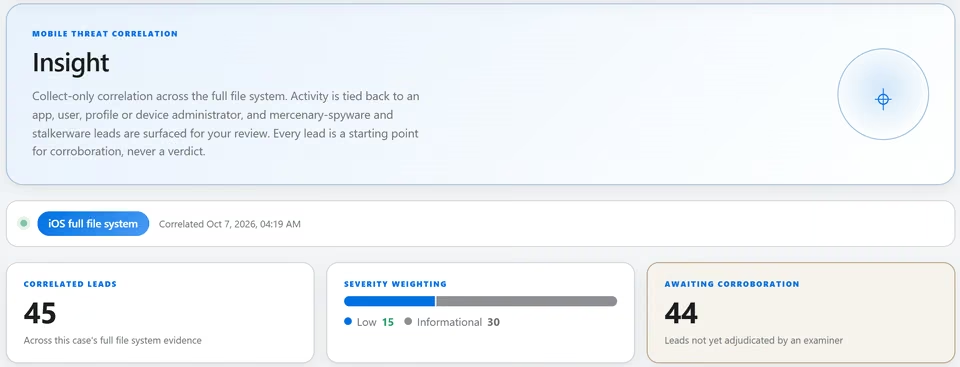
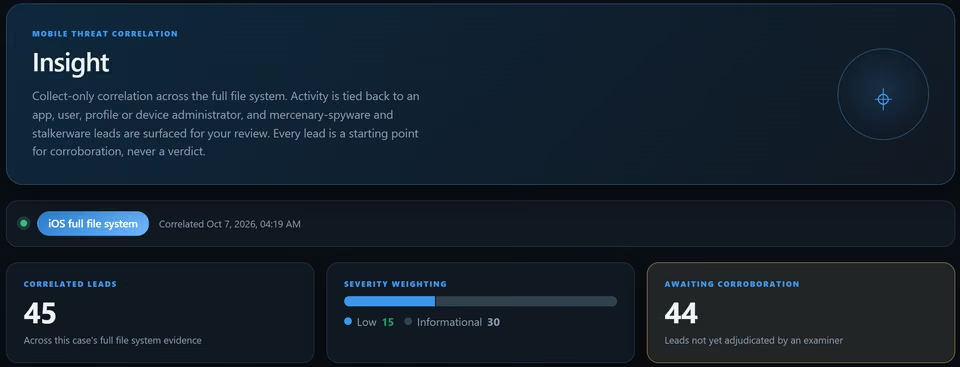
Add the extraction. SectraTEK reads it where it is stored, read-only, and records a SHA-256 hash of it before analysis starts.
See what was found and what was read, category by category.
Findings are graded red, amber or green, each with a plain-language explanation and a clear way to read it.
In SectraTEK Full you build the report from the case itself: choose the sections to include, add the case information and a title, and export it.
The complete AI dossier is built from the same verified results in both editions, ready for the AI tool or analyst you choose.
Four guided examinations and the Quick Capture collector, step by step on demonstration cases. The red numbers in each picture are named in the list under it. Use the step list, or the Previous and Next buttons.
From a full file system image to an AI dossier an examiner approves, one screen at a time.
SectraTEK Full screensCreate the examinationStep 1 of 14
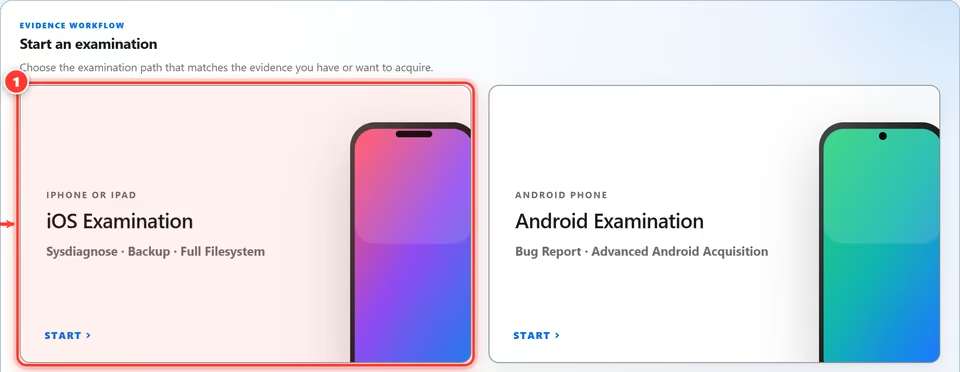
Open the iOS Examination card on the home screen. It covers sysdiagnose, backup and full file system evidence.
Create the examinationStep 2 of 14
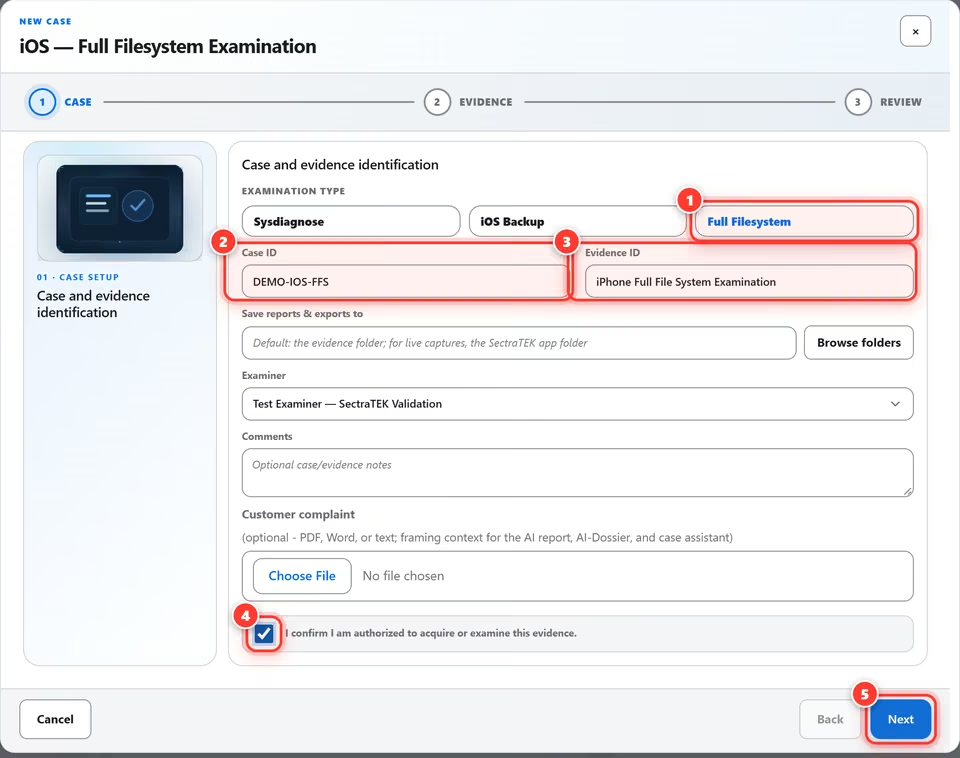
Pick Full Filesystem, enter a case ID and an evidence ID, then confirm you are authorized to examine this evidence.
Create the examinationStep 3 of 14
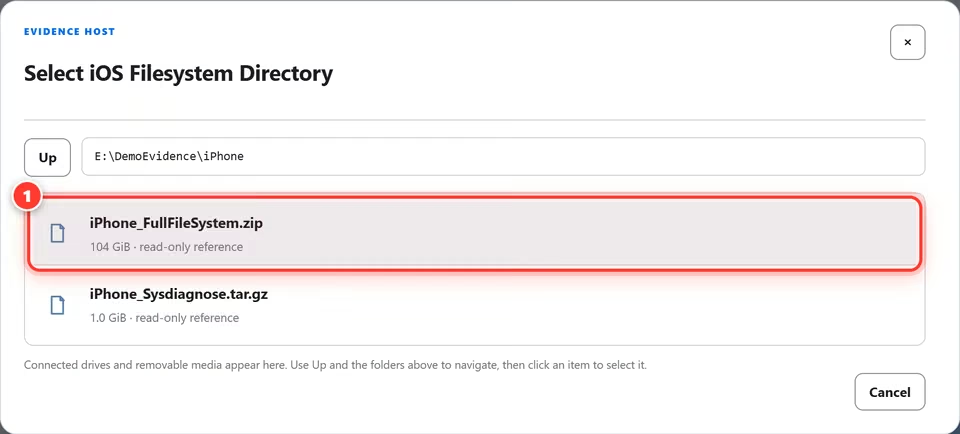
Choose Browse, open the iPhone folder and select the full file system ZIP. Its size appears before you commit.
Create the examinationStep 4 of 14
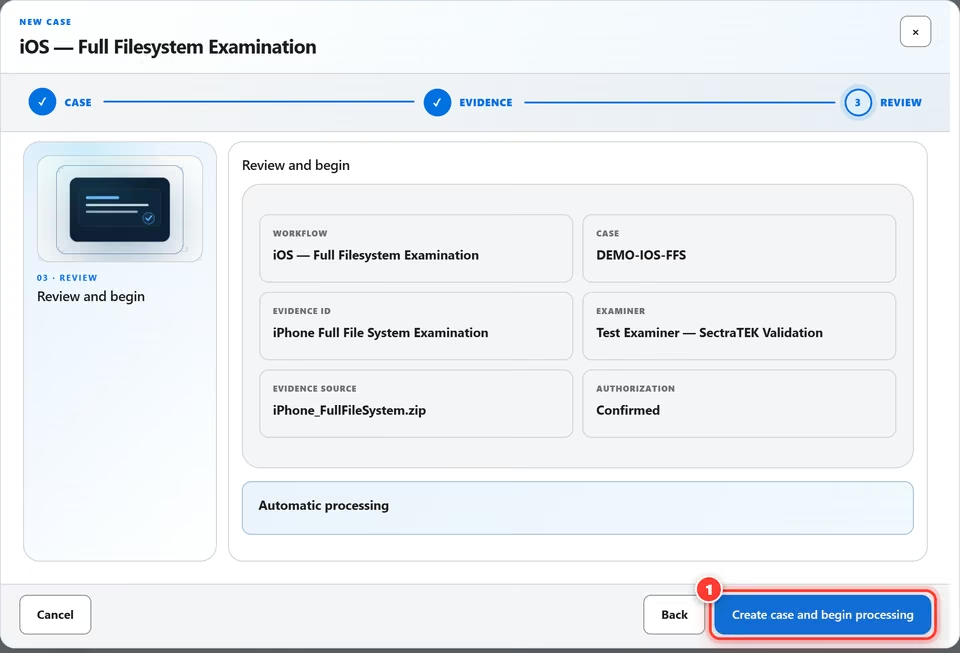
Check the summary, then create the case. The automatic examination starts straight away.
Watch it workStep 5 of 14
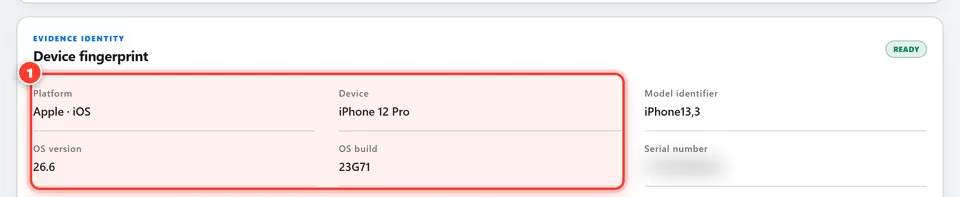
While processing runs, the device fingerprint appears automatically. Sensitive identifiers are blurred here.
Watch it workStep 6 of 14
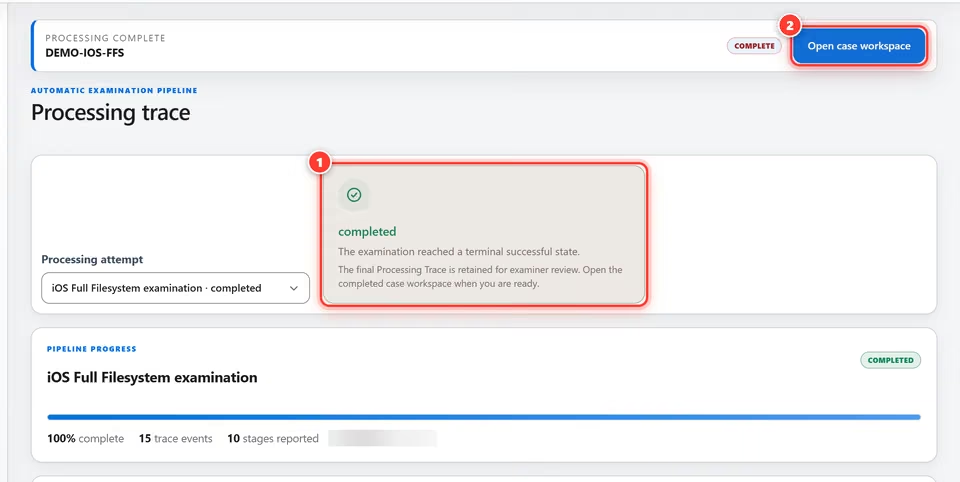
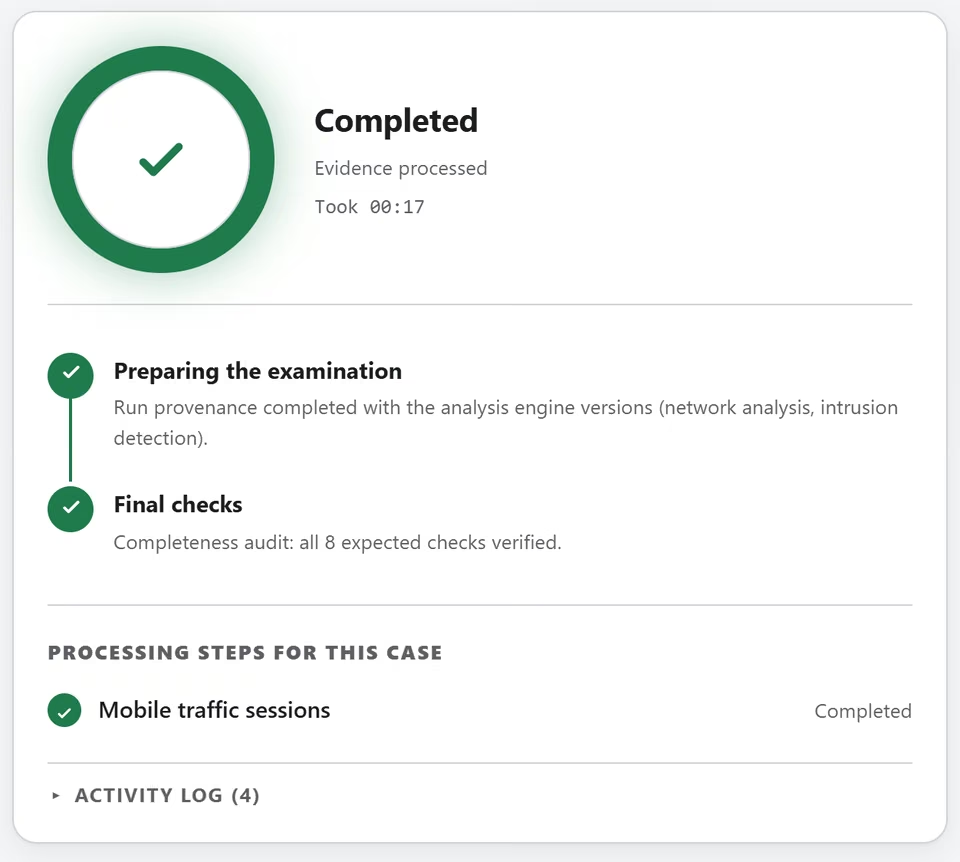
The trace confirms the run reached a successful end state. Open the case workspace to review the results.
Explore the resultsStep 7 of 14
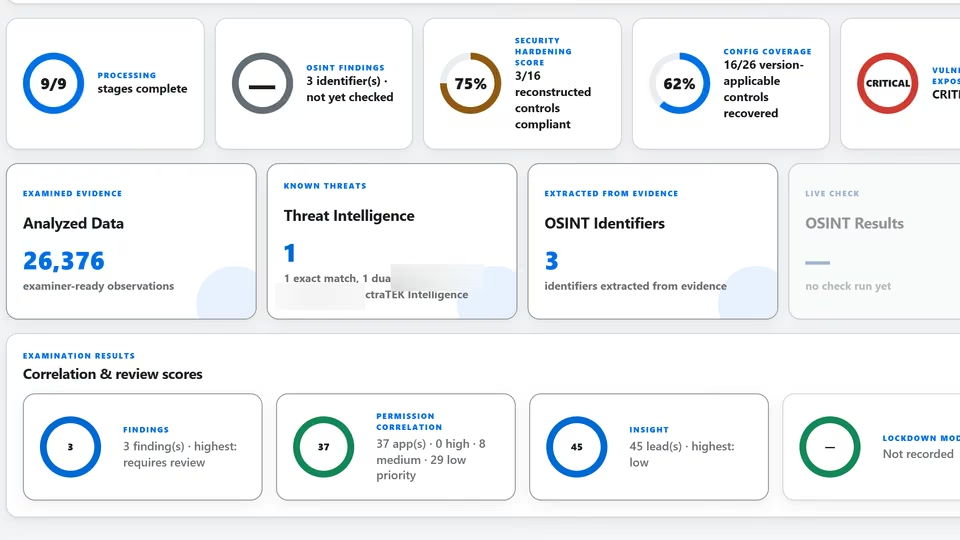
The overview summarizes the case: analyzed data, threat intelligence, OSINT identifiers and review scores.
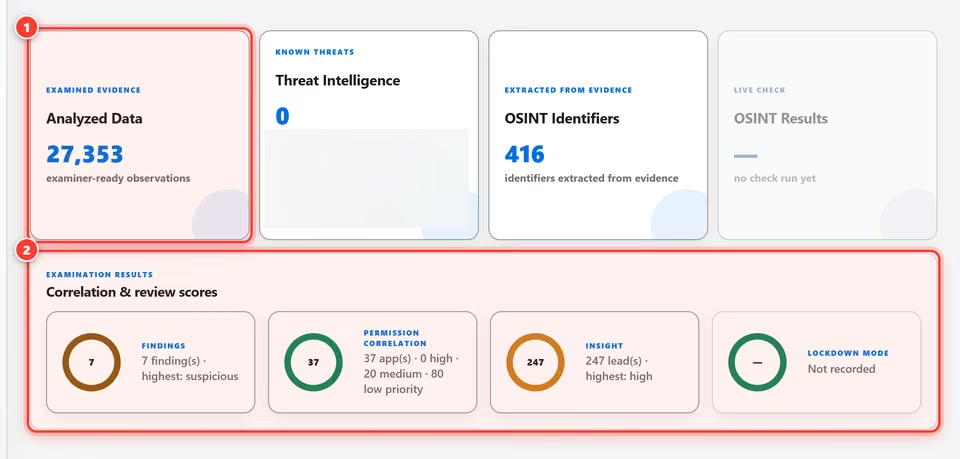
Explore the resultsStep 8 of 14
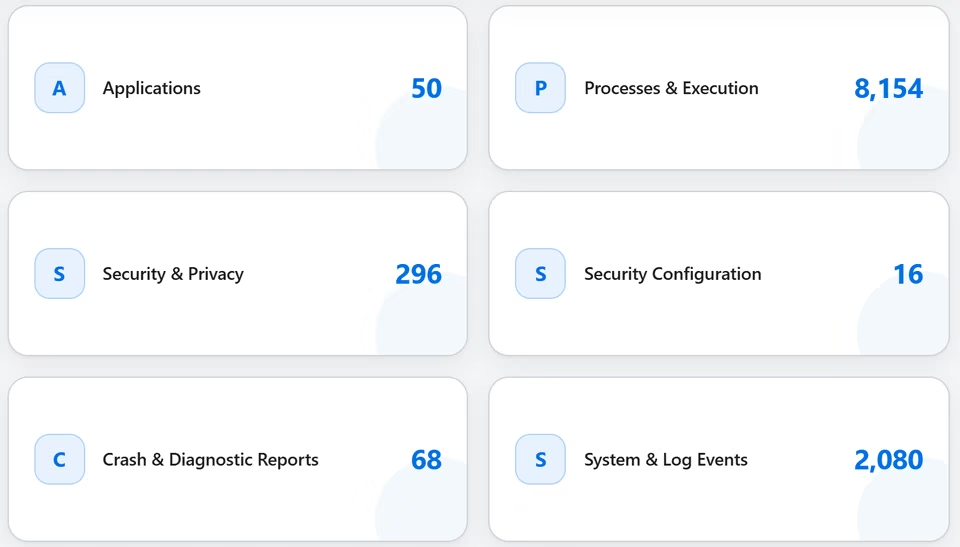
Analyzed data sorts what was recovered into categories, such as applications, processes, web activity and communications. Each category shows a count. Categories with no records are not listed.
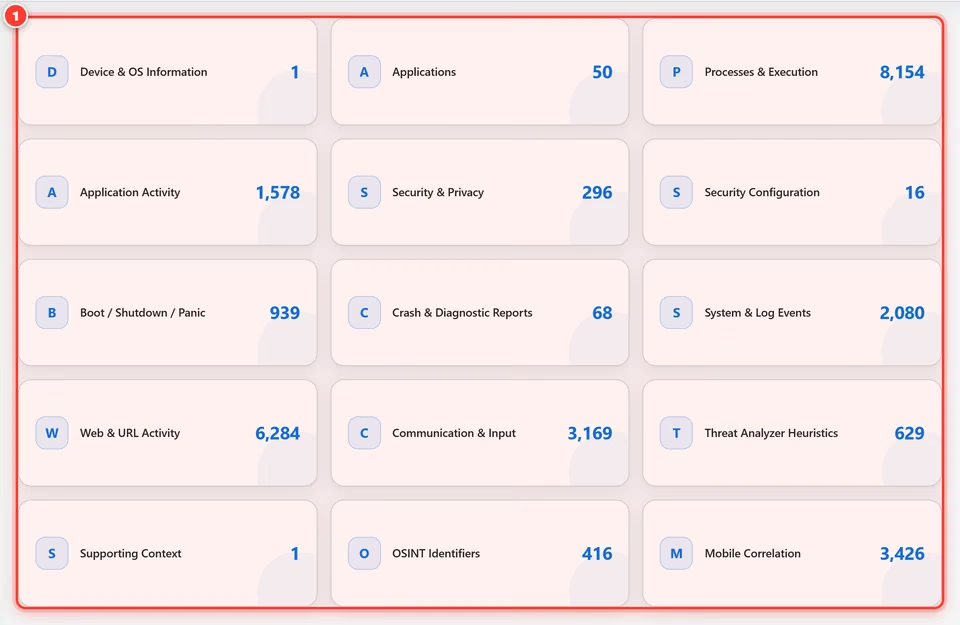
Explore the resultsStep 9 of 14
Insight correlates activity across the whole file system and weights each lead by severity for your review.

Explore the resultsStep 10 of 14
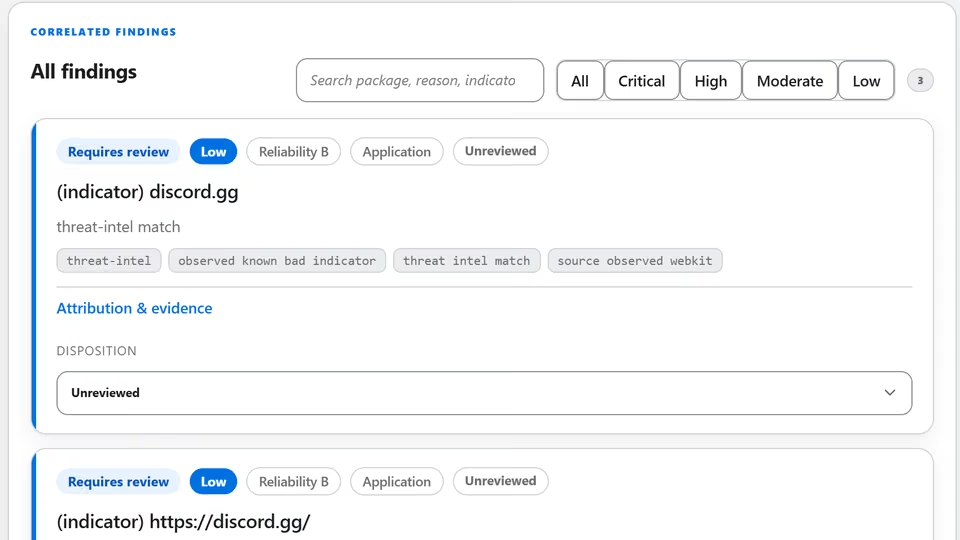
Findings group suspicious activity by type and reliability. You confirm or reject each one.

Deliver the dossierStep 11 of 14
Choose Reports & AI review, then build the AI-Dossier with a single click.
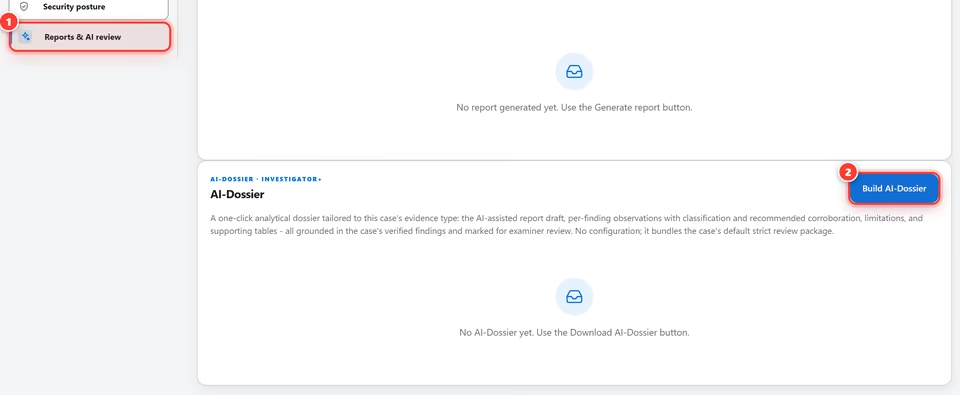
Deliver the dossierStep 12 of 14
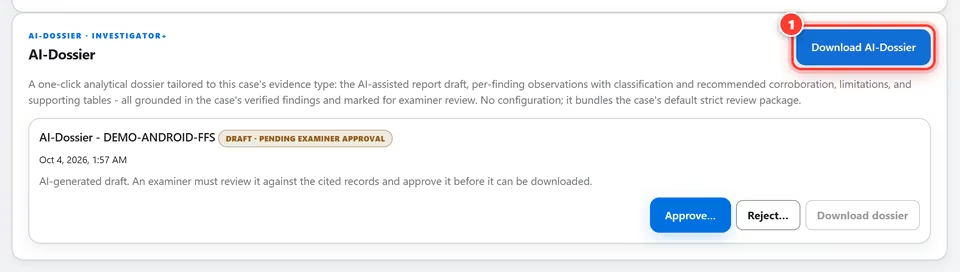
The dossier is built as a draft. An examiner reviews it, then approves it to release the download.
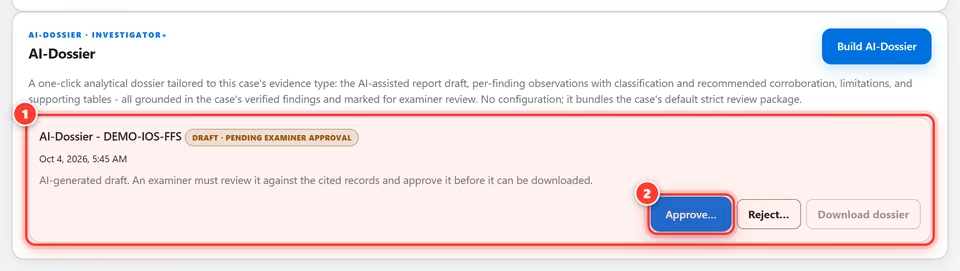
Deliver the dossierStep 13 of 14
Approval releases the download and records your name, the time and your rationale in the case audit trail. By default, if you built the dossier and no other examiner can review the case, you first confirm that you reviewed the dossier against the cited records. Otherwise another examiner approves it.
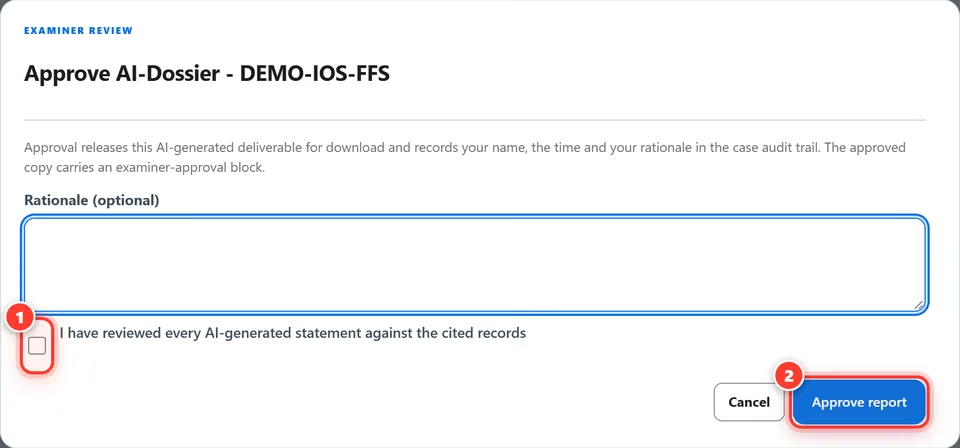
Deliver the dossierStep 14 of 14
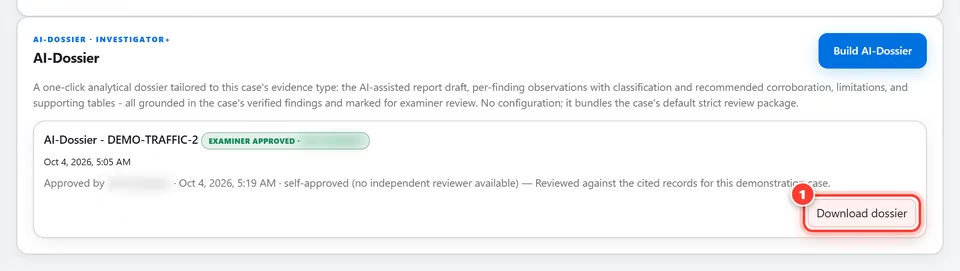
Once approved, the dossier is released. One click saves the complete package for your report.
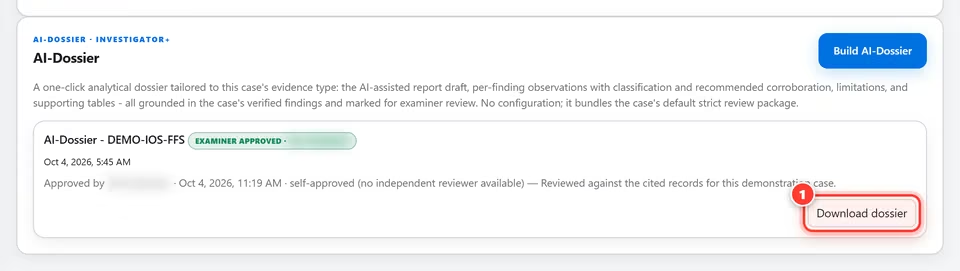
From a full file system extraction to an AI dossier an examiner approves, one screen at a time.
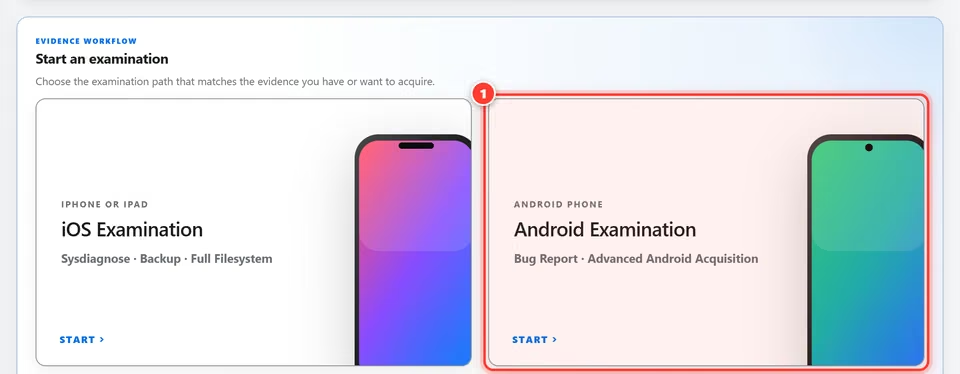
SectraTEK Full screensCreate the examinationStep 1 of 12
Start from Home. One card covers every Android evidence type you already have in hand.
Create the examinationStep 2 of 12
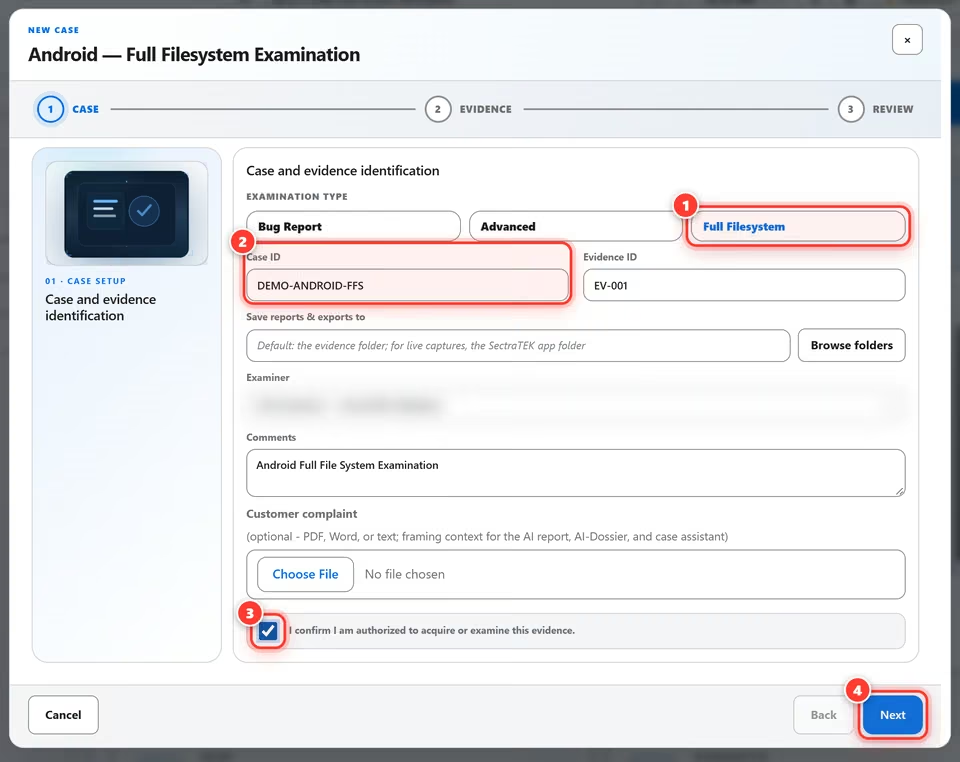
Select Full Filesystem, name the case, and confirm you are authorized to examine this evidence.
Create the examinationStep 3 of 12
Pick the archive in the evidence browser. SectraTEK references it in place and opens it read-only.
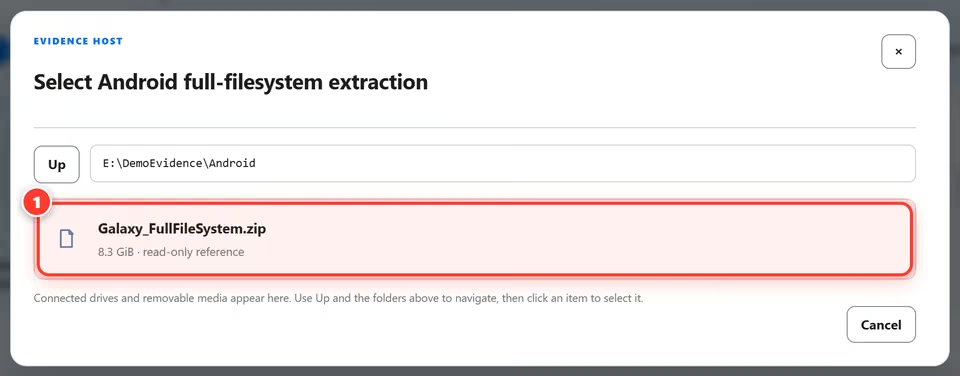
Create the examinationStep 4 of 12
Check the summary, then create the case. Processing starts automatically.
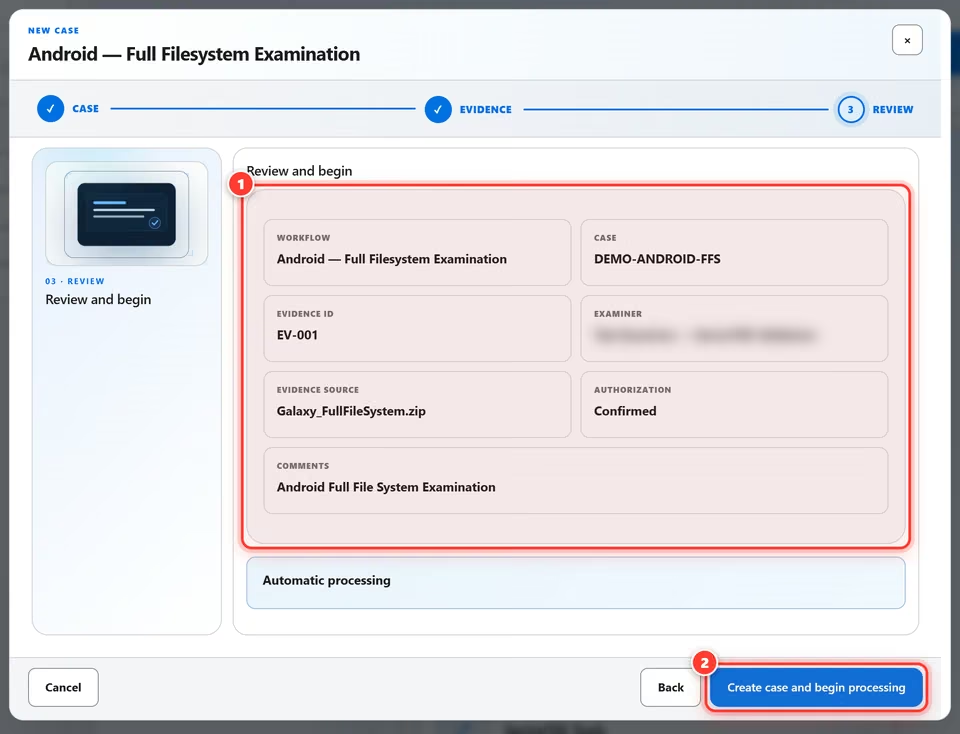
Create the examinationStep 5 of 12
The pipeline reports each stage as it runs. When it finishes, open the case workspace.
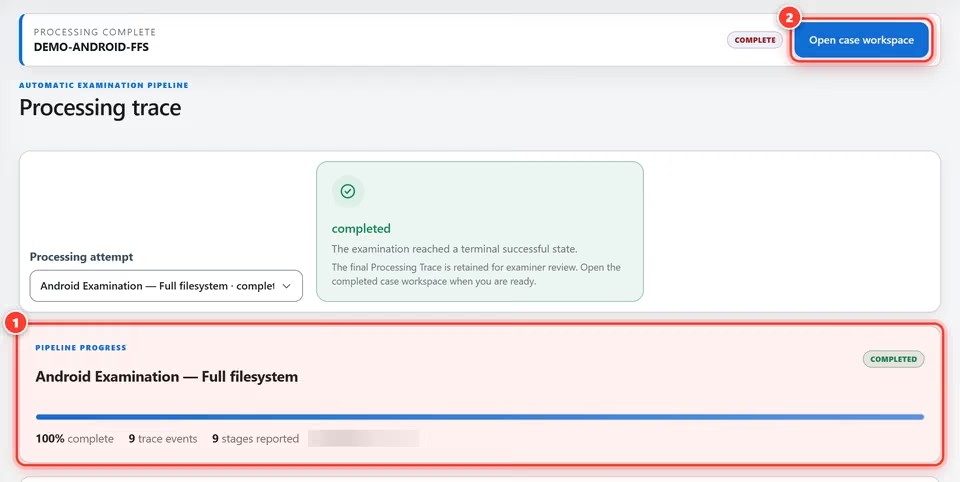
Explore the workspaceStep 6 of 12
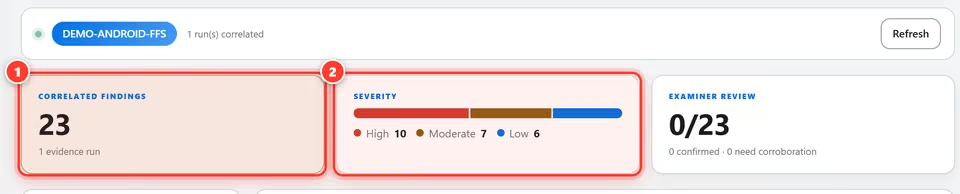
Insight ties activity back to apps and accounts, then ranks leads for your review.

Explore the workspaceStep 7 of 12
Apps, permissions, accounts and connectivity are organized into clear categories with live counts.
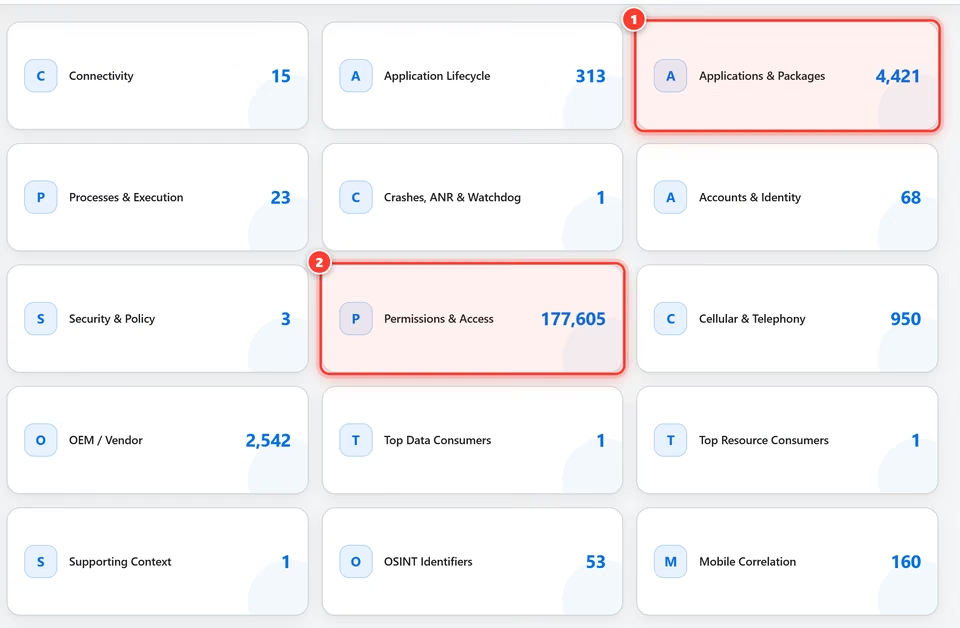
Explore the workspaceStep 8 of 12
Suspicious activity is correlated across the evidence and traced back to the source records.
Explore the workspaceStep 9 of 12
Security configuration is rated from the settings recovered from the evidence. Vulnerability exposure compares the OS version and security patch level recovered from the evidence with the application's vulnerability intelligence.

Deliver the resultStep 10 of 12
One click assembles a case-specific dossier grounded in the verified findings.
Deliver the resultStep 11 of 12
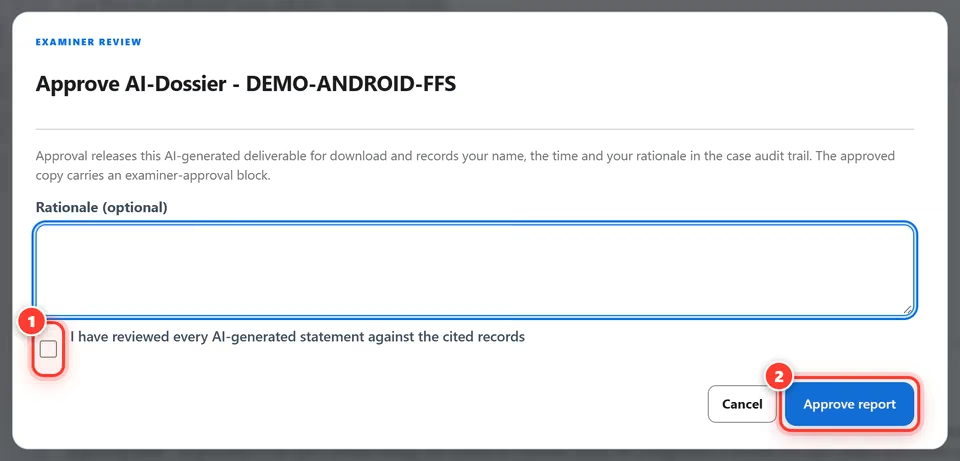
An examiner approves the dossier, which unlocks the download. By default, if you built it and no other examiner can review the case, you first confirm that you reviewed the dossier against the cited records.
Deliver the resultStep 12 of 12
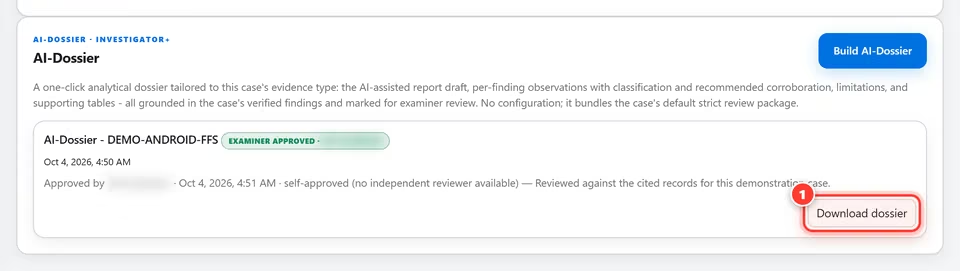
Once approved, the dossier is released. One click saves the complete package for your report.
From a sysdiagnose archive to an AI dossier an examiner approves, one screen at a time.
SectraTEK Full screensCreate the examinationStep 1 of 13
Open the iOS Examination card on the home screen. It covers sysdiagnose, backup and full file system evidence.
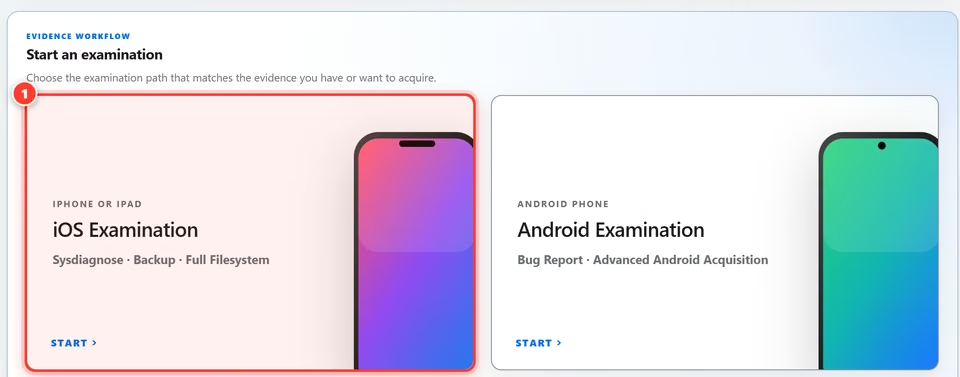
Create the examinationStep 2 of 13
Pick Sysdiagnose, then give the case and evidence IDs. Confirm you are authorized to examine the evidence.
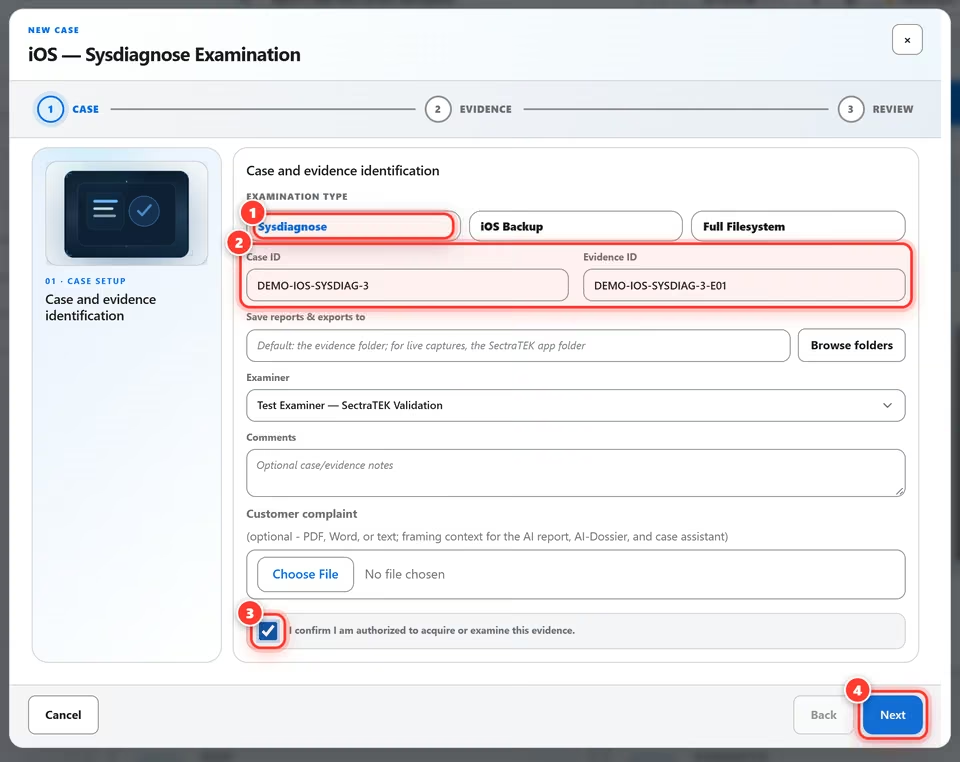
Create the examinationStep 3 of 13
Browse the evidence host and choose the sysdiagnose archive. Its size is shown before you commit.
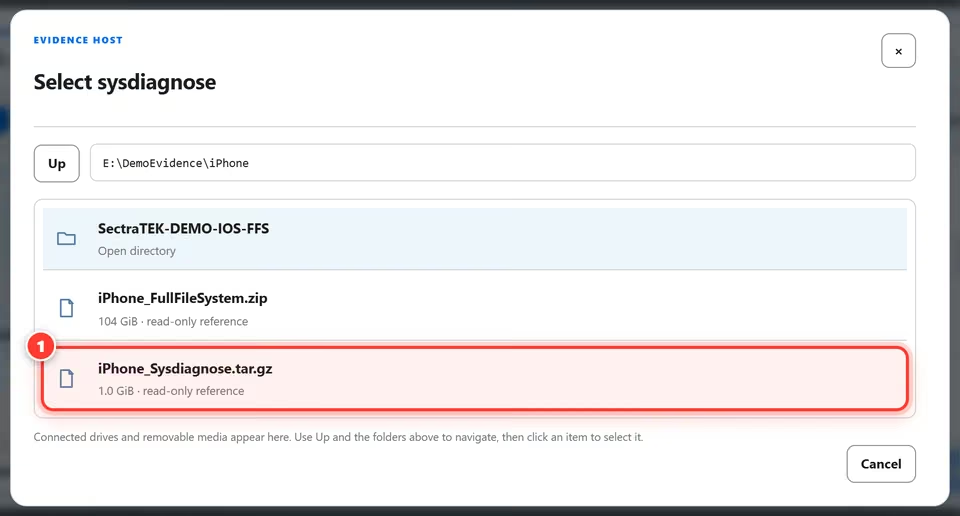
Create the examinationStep 4 of 13
Check the summary, then start. The examination runs automatically from here.
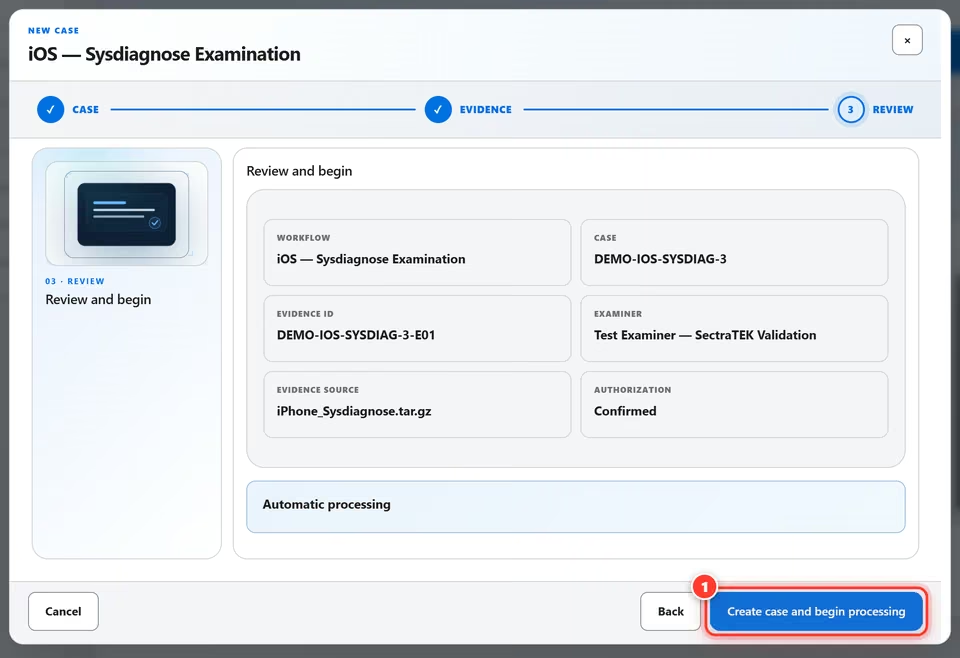
Create the examinationStep 5 of 13
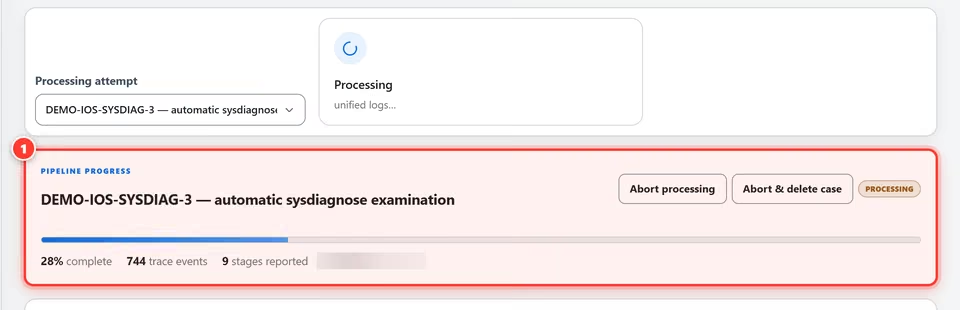
Live progress shows each stage as the archive is verified, decoded and analyzed. You can keep working meanwhile.
Create the examinationStep 6 of 13
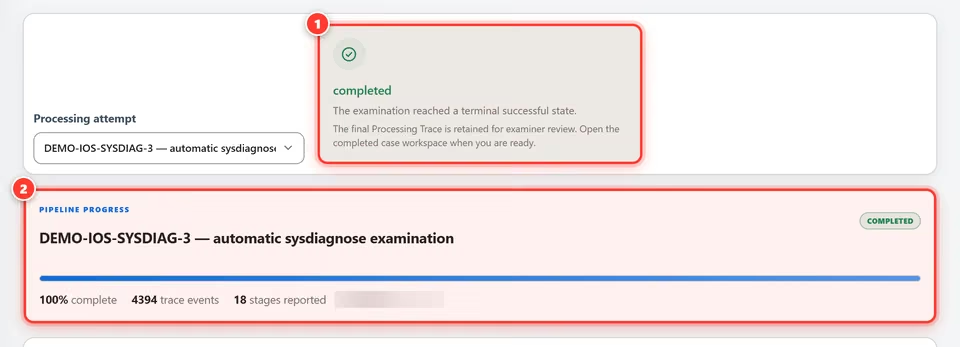
When every stage finishes, the case reports completed and the full trace is kept for review.
Review the resultsStep 7 of 13
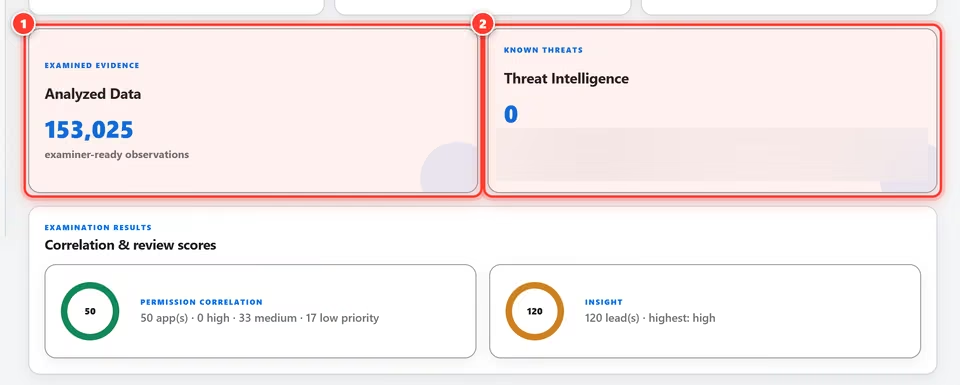
See evidence, analyzed data and threat intelligence results at a glance. Each card opens the detail behind it.
Review the resultsStep 8 of 13
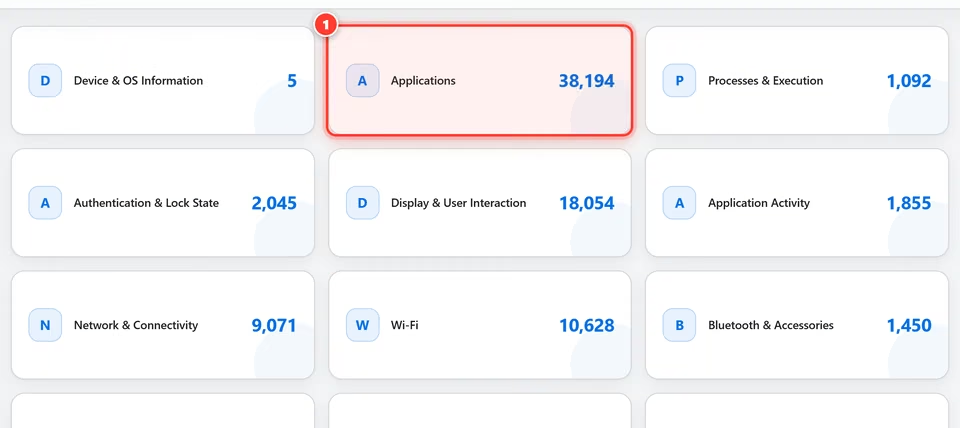
Observations are sorted into plain-language categories so you can go straight to apps, Wi-Fi, security and more.
Review the resultsStep 9 of 13
Insight correlates activity across the whole archive and ranks leads by severity. Each one is a starting point, never a verdict.

Review the resultsStep 10 of 13
Search the decoded Apple log events by message, process, subsystem or category, narrow them by date and sort the list. Records that could not be decoded are listed separately.
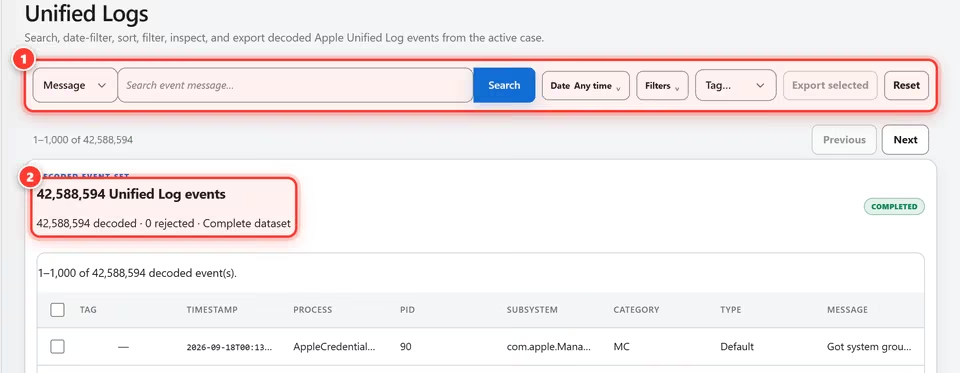
Tip. The Tag control marks the events you select. It does not filter the list.
Deliver the dossierStep 11 of 13
One click assembles a dossier from the verified findings. It stays a draft until an examiner approves it.
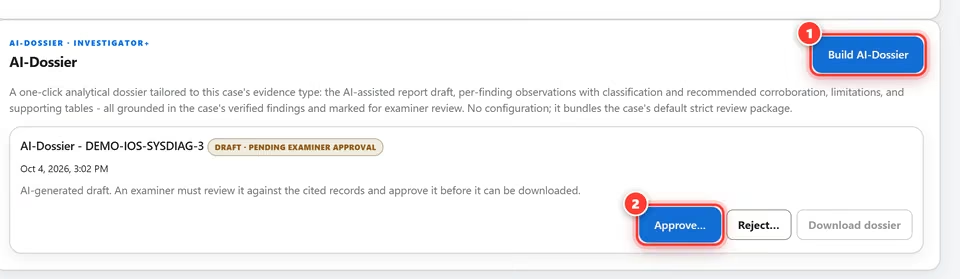
Deliver the dossierStep 12 of 13
An examiner approves the dossier in an approval dialog. The approval is recorded in the case audit trail. By default, if you built the dossier and no other examiner can review the case, the dialog also asks you to confirm that you reviewed the dossier against the cited records.
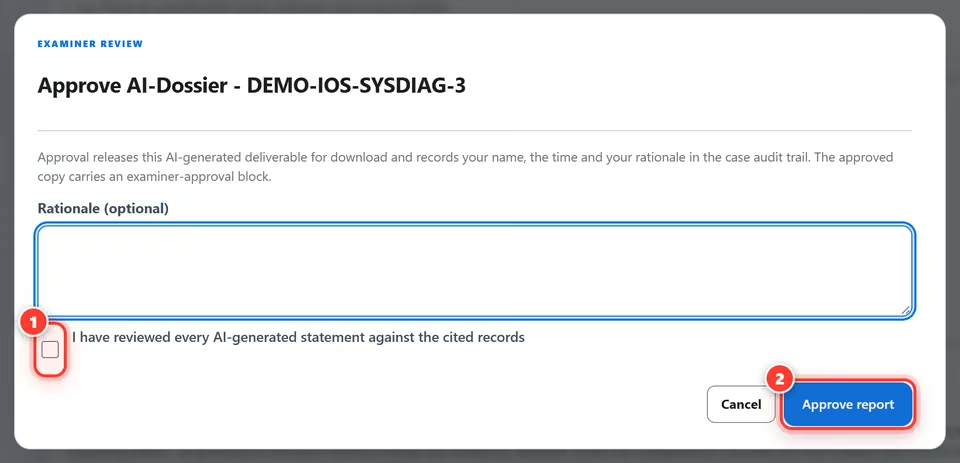
Deliver the dossierStep 13 of 13
Once approved, the dossier is released. One click saves the complete package for your report.
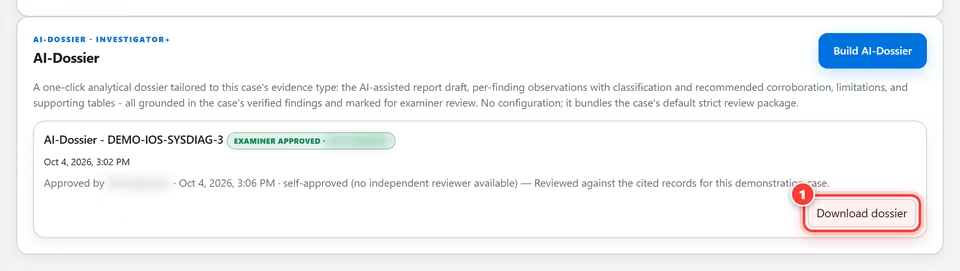
From a captured network recording to an AI dossier an examiner approves, one screen at a time.
SectraTEK Full screensCreate the examinationStep 1 of 14
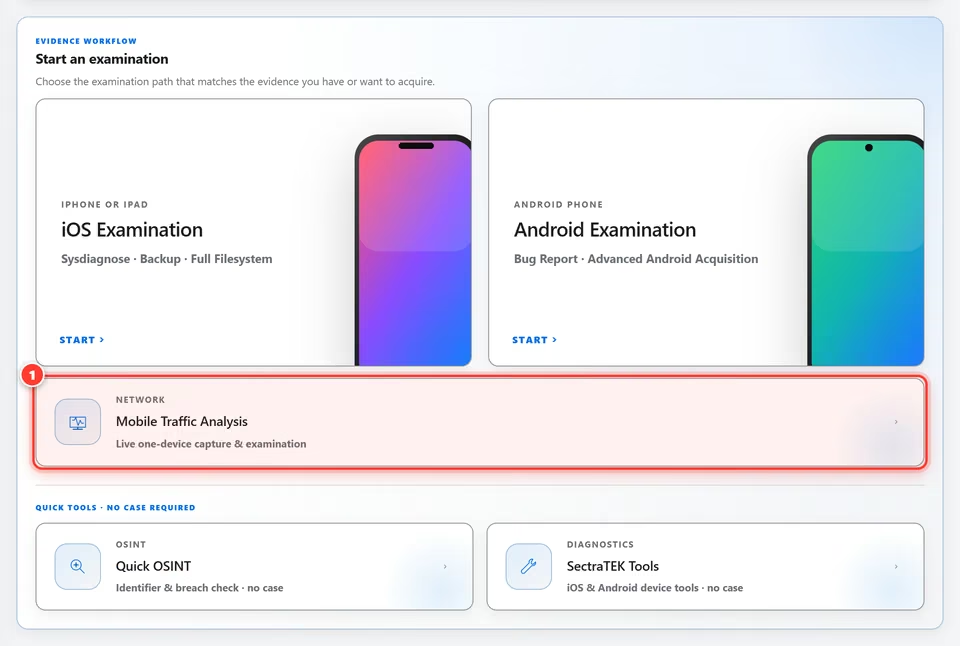
From Home, select Mobile Traffic Analysis in the Network row. Every examination begins here.
Create the examinationStep 2 of 14
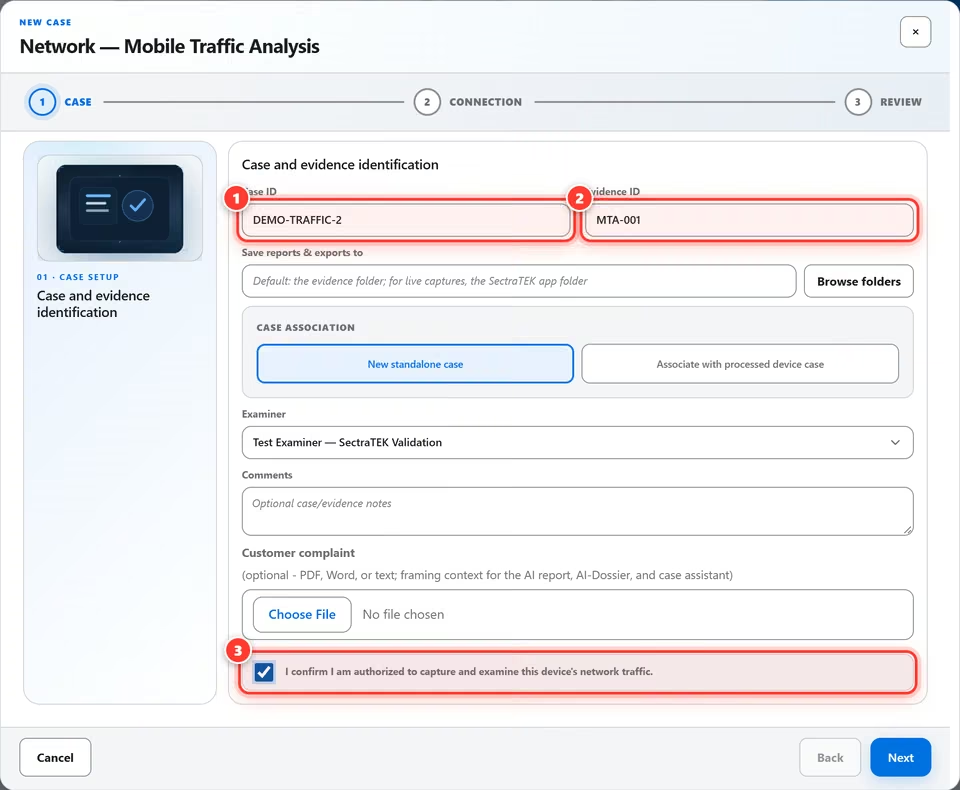
Give the case and evidence item their identifiers, then confirm you are authorized to examine this traffic.
Create the examinationStep 3 of 14
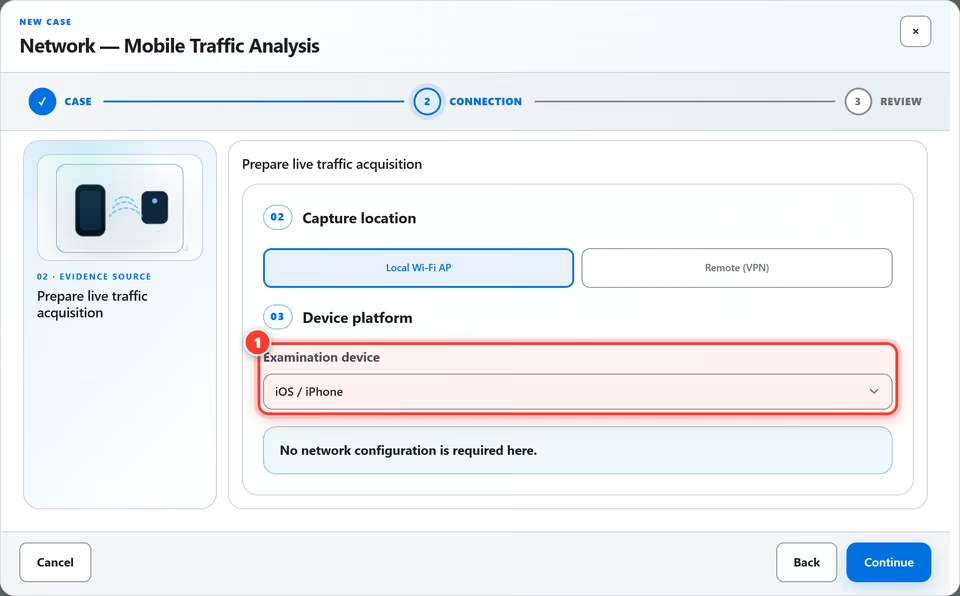
Tell SectraTEK whether the recording came from an iPhone or an Android device. To import a capture you already have, no network setup is needed.
Import the captureStep 4 of 14
Already have a recording? Choose it from this computer or its evidence drive. SectraTEK does not upload or copy an existing capture. It reads the file where it is stored.
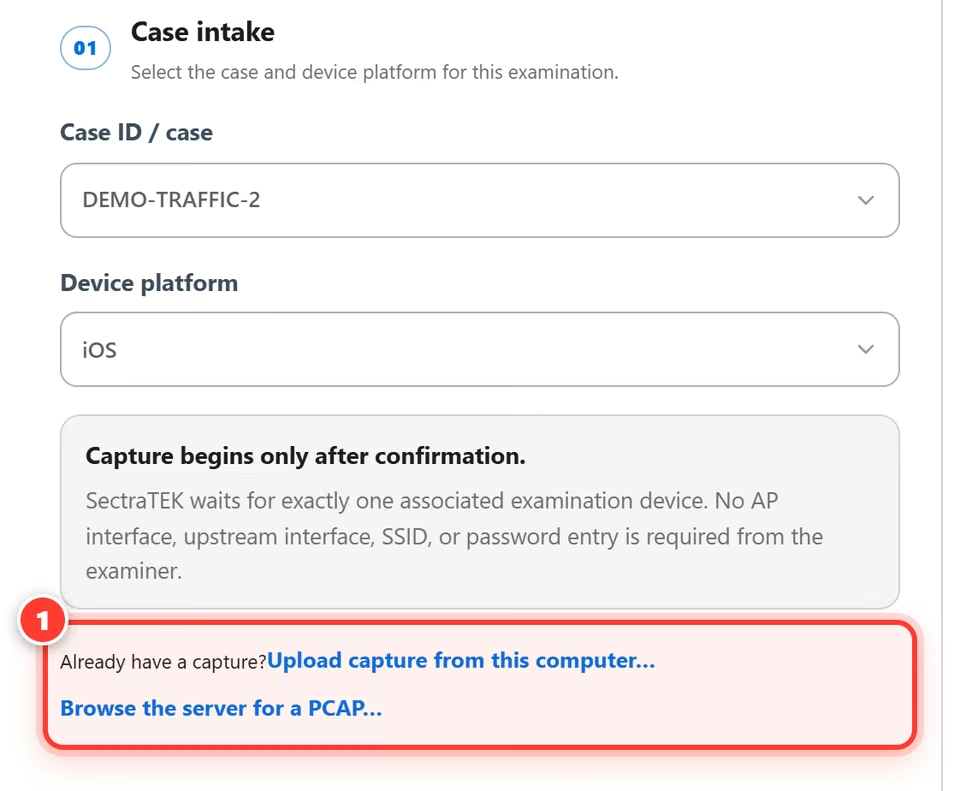
About this figure. In the current build, you choose the capture with Select a capture file.
Import the captureStep 5 of 14
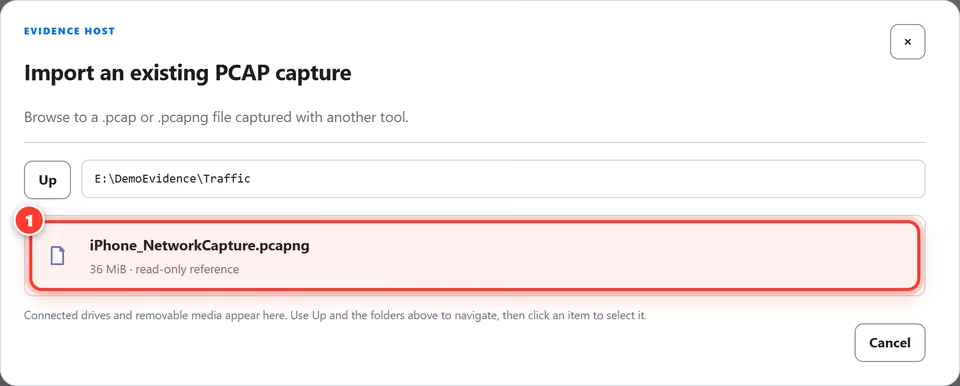
Navigate the evidence drive and click the capture. SectraTEK references the file where it is stored and opens it read-only. It is not copied.
Import the captureStep 6 of 14
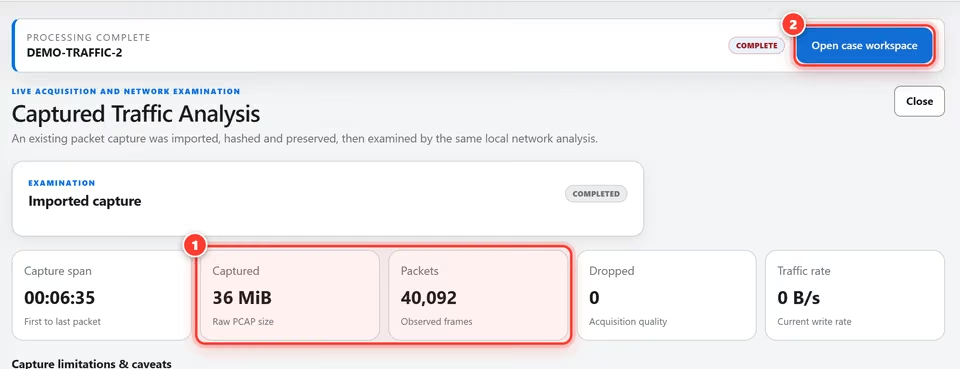
SectraTEK records the capture's path, size and SHA-256, then analyzes the file where it sits. When it completes, open the case workspace.
Tour the workspaceStep 7 of 14
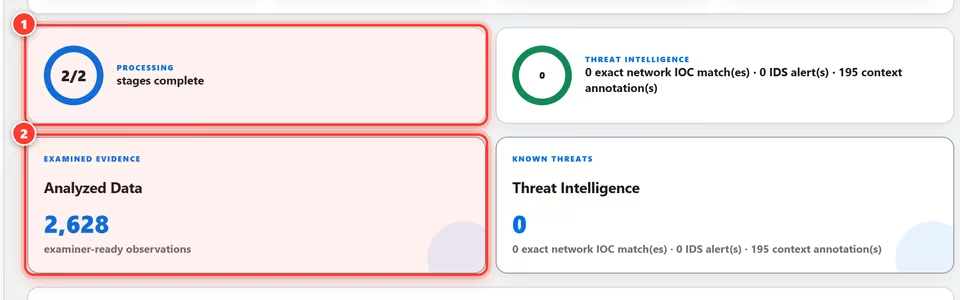
The overview shows how many processing stages are complete and summarizes what was examined.
Tour the workspaceStep 8 of 14
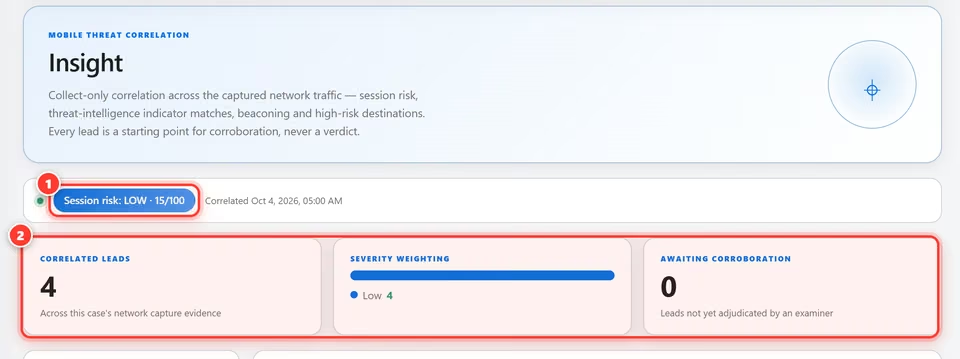
Insight brings the session's threat picture together: one overall session risk with a score out of 100, and the leads behind it. Each lead is a starting point for corroboration.
Tour the workspaceStep 9 of 14
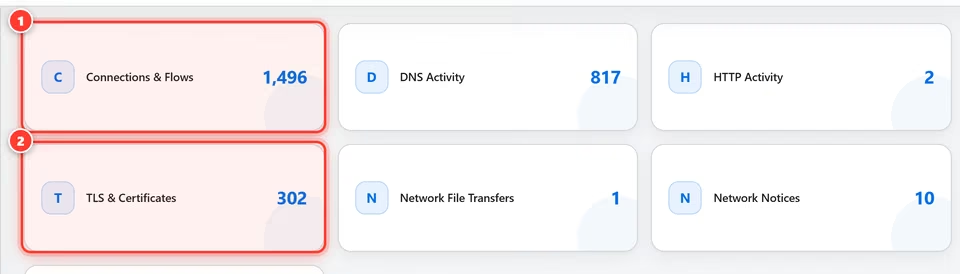
Analyzed Data sorts the capture into network categories, such as connections and flows, DNS activity, HTTP activity and TLS and certificates. Each shows a count. Open one to read its rows and search it.
Tour the workspaceStep 10 of 14
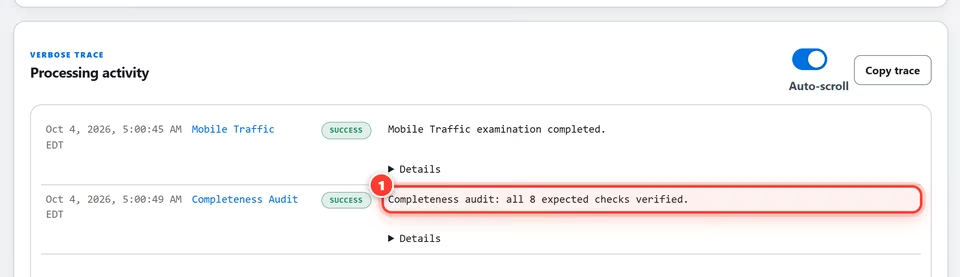
The processing trace lists each step of the examination. When processing ends, a completeness audit checks that every expected stage ran and says so, or names what did not.
Deliver the dossierStep 11 of 14
In Reports & AI review, build the AI-Dossier with one click. No configuration is required.

Deliver the dossierStep 12 of 14
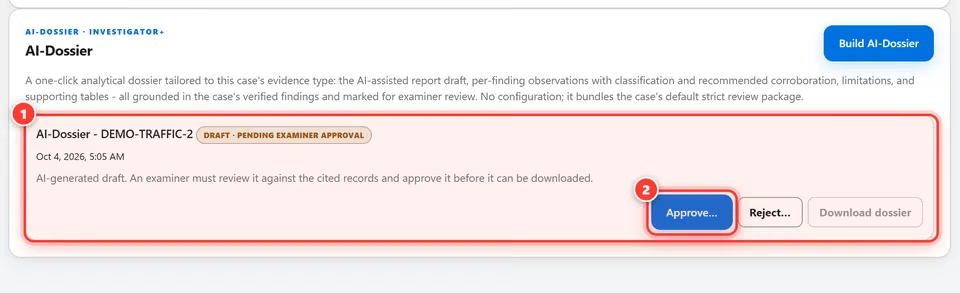
Your dossier is ready as a draft. An examiner reviews it, then approves it to unlock the download.
Deliver the dossierStep 13 of 14
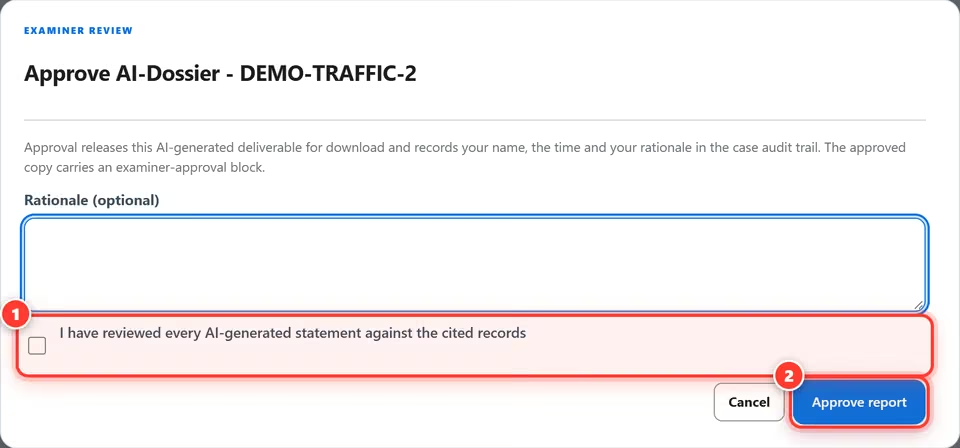
Approving records your name and the time in the case audit trail and unlocks the download. By default, if you built the dossier and no other examiner can review the case, you first confirm that you reviewed the dossier against the cited records.
Deliver the dossierStep 14 of 14
Once approved, the dossier is released. One click saves the complete package for your report.
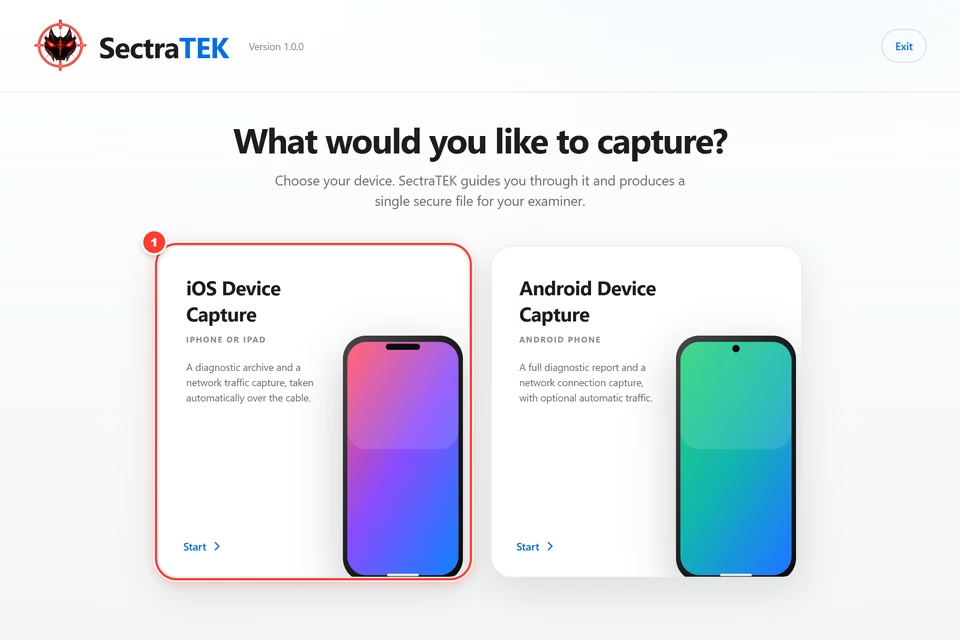
How whoever holds the phone collects a sysdiagnose and a network capture, or an Android bug report, and sends one file.
SectraTEK Quick Capture screensiOS · iPhone or iPadStep 1 of 8
Open SectraTEK Quick Capture. For an iPhone or iPad, choose iOS Device Capture on the home screen.
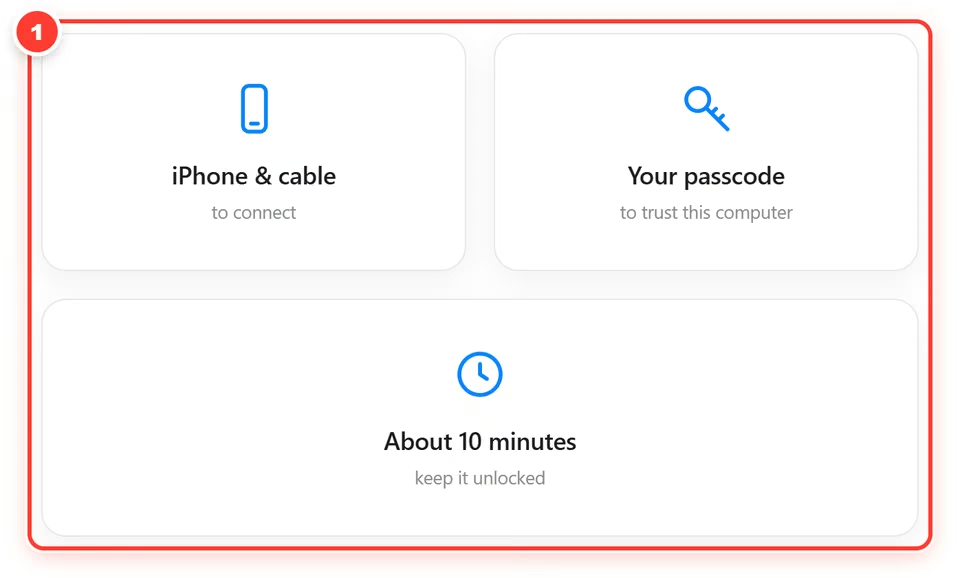
Tip. Have ready: your iPhone (iOS 17 or later) and its cable, your passcode and an internet connection.
iOS · iPhone or iPadStep 2 of 8
The welcome page lists what you need. Plug in your iPhone and unlock it. Quick Capture detects it automatically.
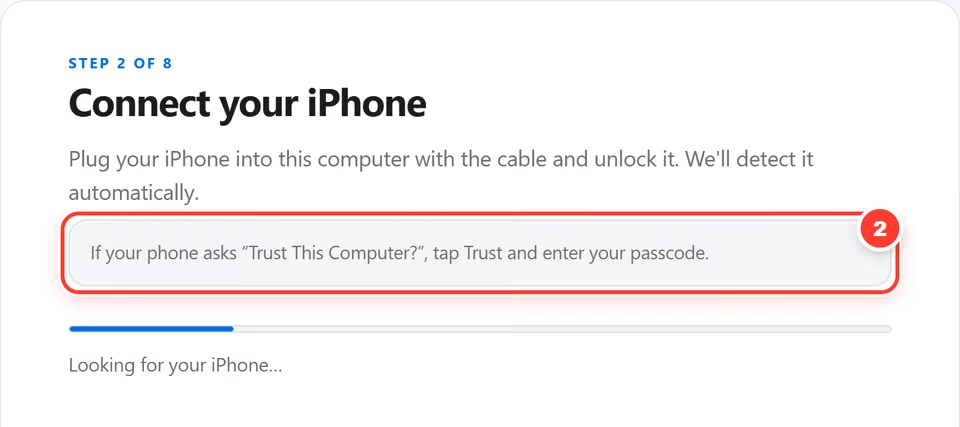
Tip. If the iPhone asks “Trust This Computer?”, tap Trust and enter your passcode on the phone.
iOS · iPhone or iPadStep 3 of 8
Check that the model and iOS version match your phone. Enter your name, the case name or ID and an evidence ID from your examiner.
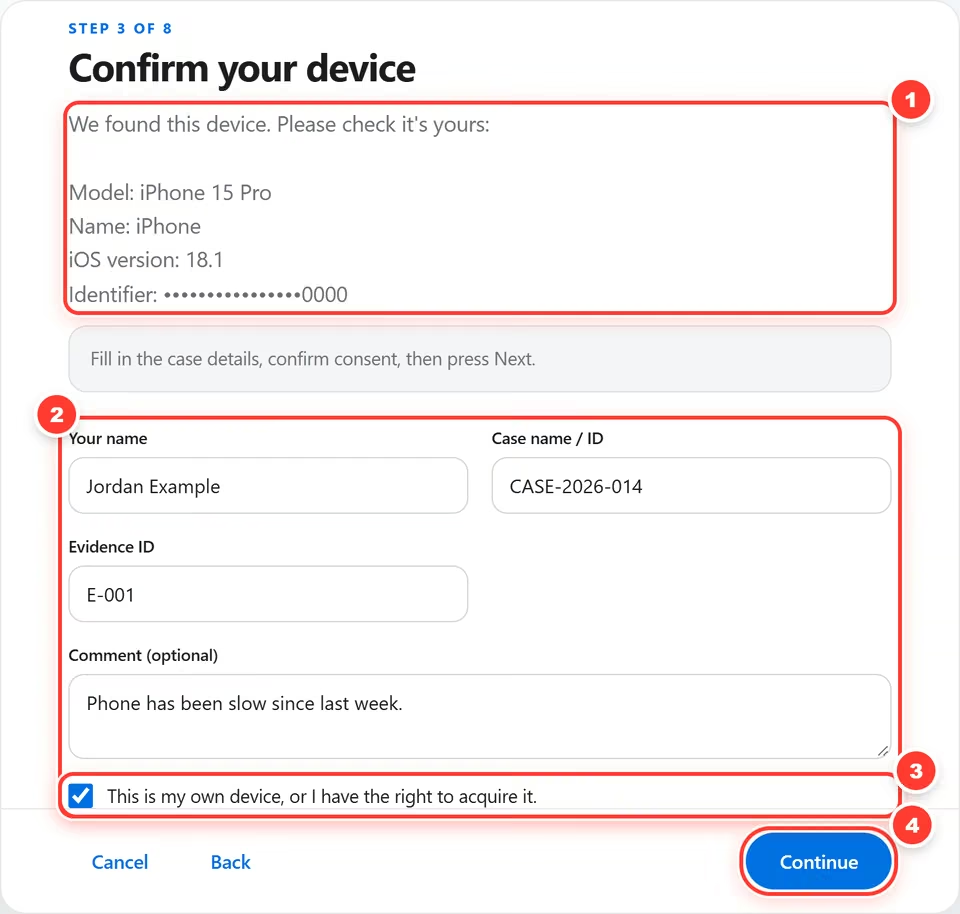
Tip. Only the last four characters of the device identifier are shown on screen. The session log inside the package records the full identifier.
iOS · iPhone or iPadStep 4 of 8
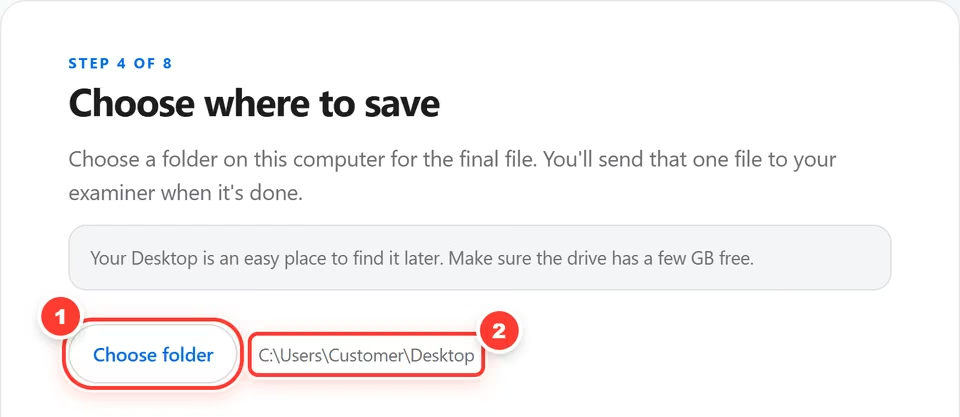
Pick where the final file will be saved. Quick Capture then checks Developer Mode and shows the exact steps if it needs turning on.
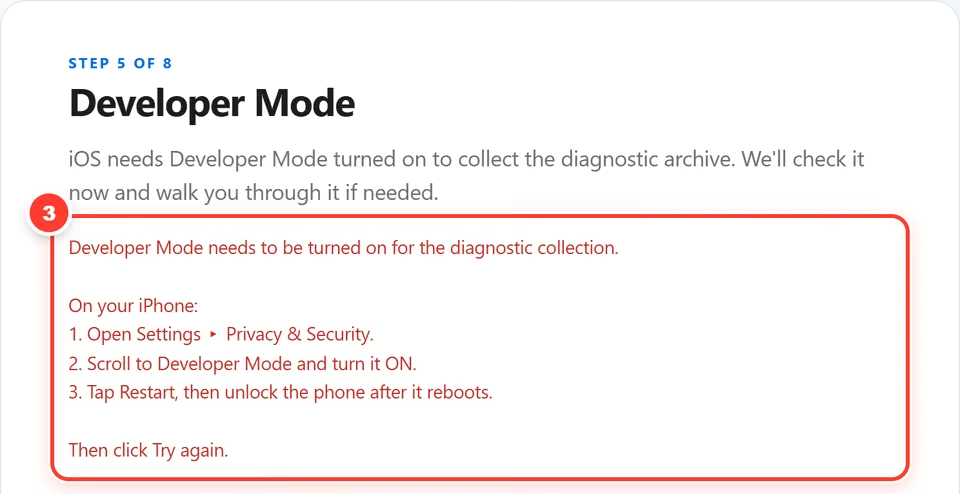
Tip. After turning Developer Mode on, the iPhone restarts. Unlock it and press Try again.
iOS · iPhone or iPadStep 5 of 8
Quick Capture collects the iPhone’s diagnostic archive for you. It can take several minutes. Keep the phone unlocked and connected.
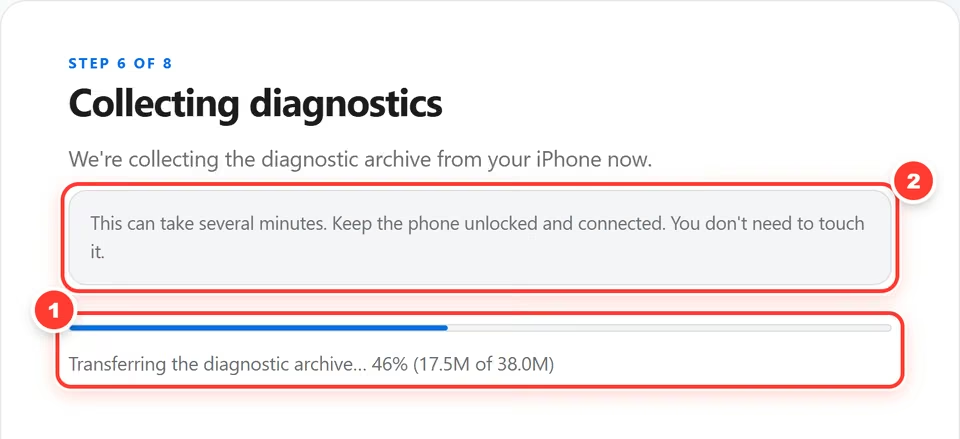
iOS · iPhone or iPadStep 6 of 8
Choose the connection you use, press Start and use your phone as you normally would. After at least a minute, press Stop.
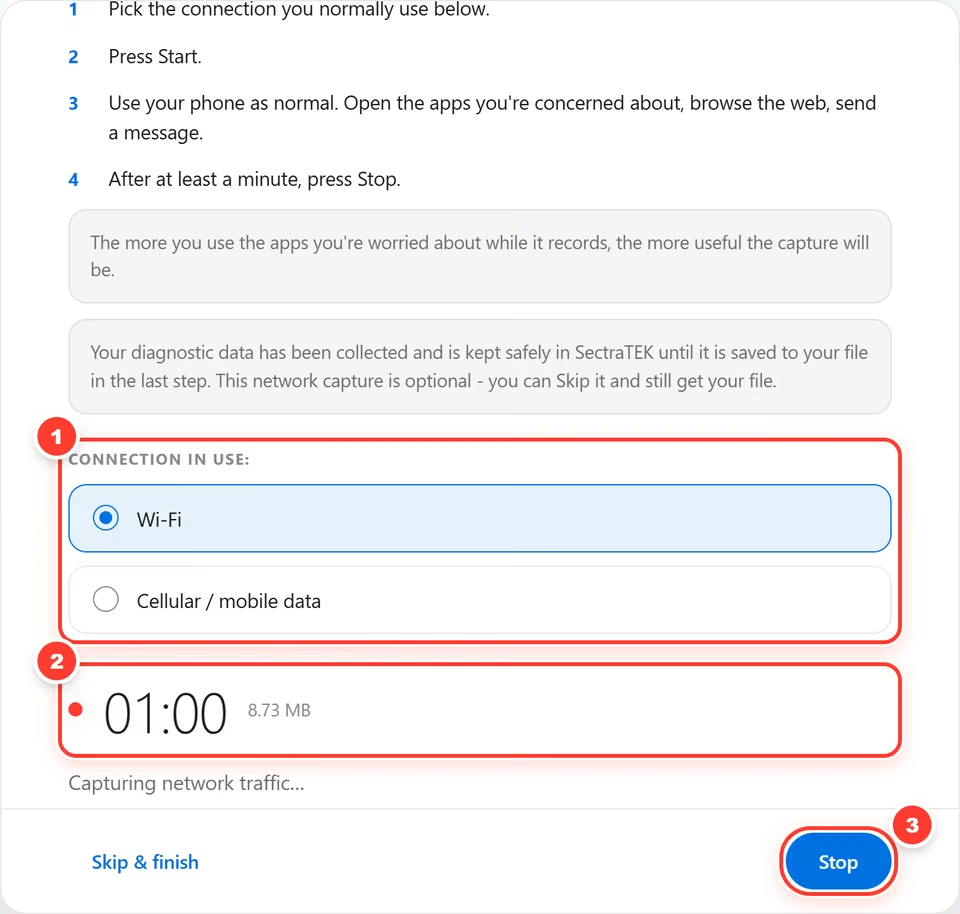
Tip. The network capture is optional. If you skip it, you still get your file.
AndroidStep 7 of 8
Choose Android Device Capture. Quick Capture lists the five taps to turn on USB debugging, then detects your phone.
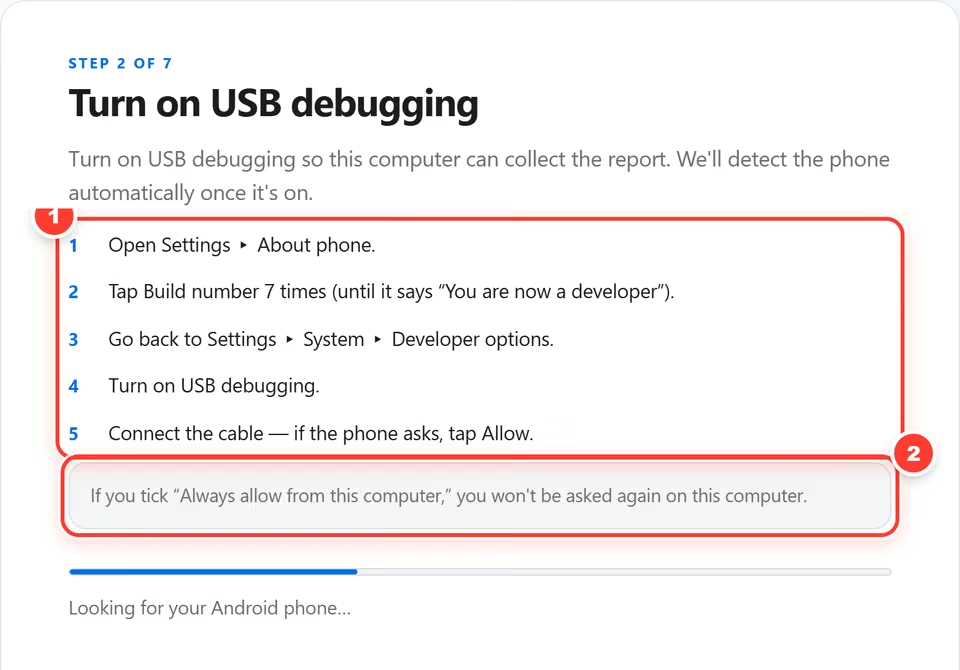
Tip. Next: confirm the device and your details, and choose a folder, exactly as on iOS. The diagnostic report then collects on its own.
AndroidStep 8 of 8
Quick Capture collects a full diagnostic report, then records your phone’s network connections. Press Start, use your apps, then press Stop.
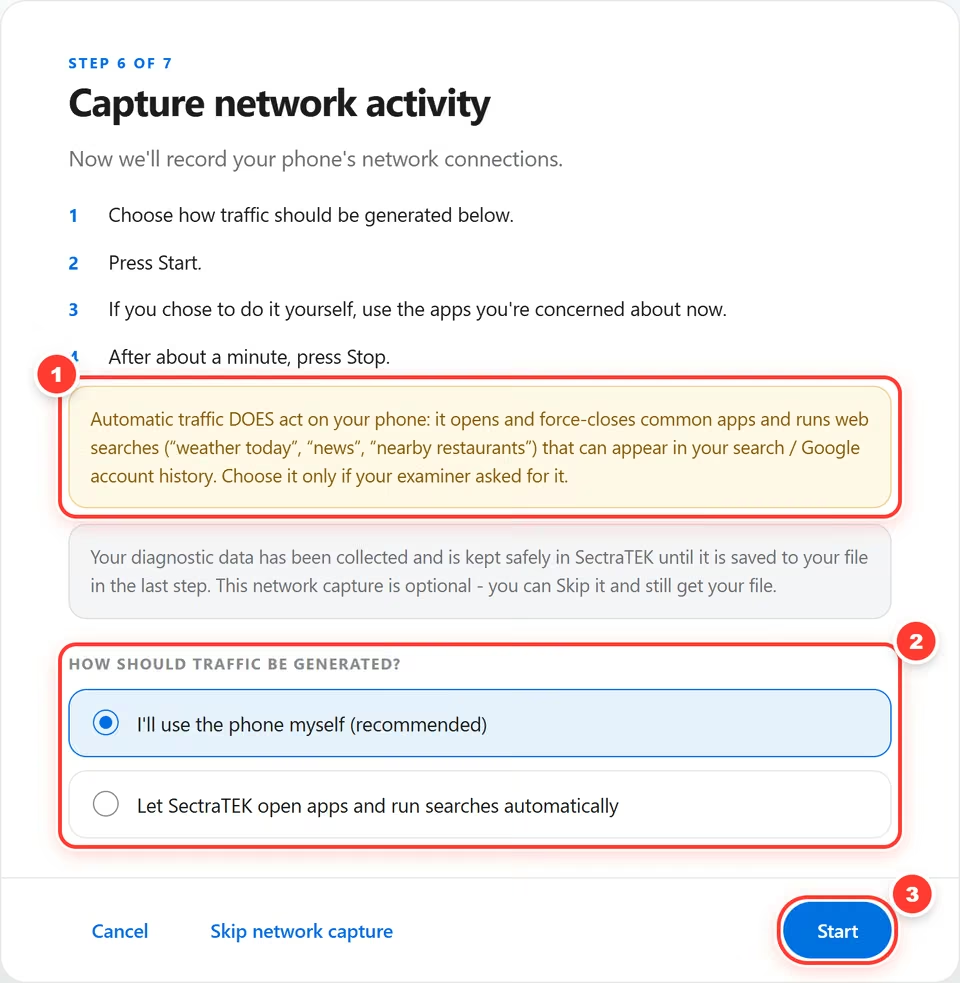
Tip. Using the phone yourself is the recommended option. At the end you see the same All done screen: file name and SHA-256.
Every picture is a screenshot of the running application on a demonstration case, with identifiers blurred. Nothing here is a customer result.
The AI-Dossier asks for an executive report that a senior executive, general counsel or board member can read in minutes, with the technical depth placed behind it in appendices.
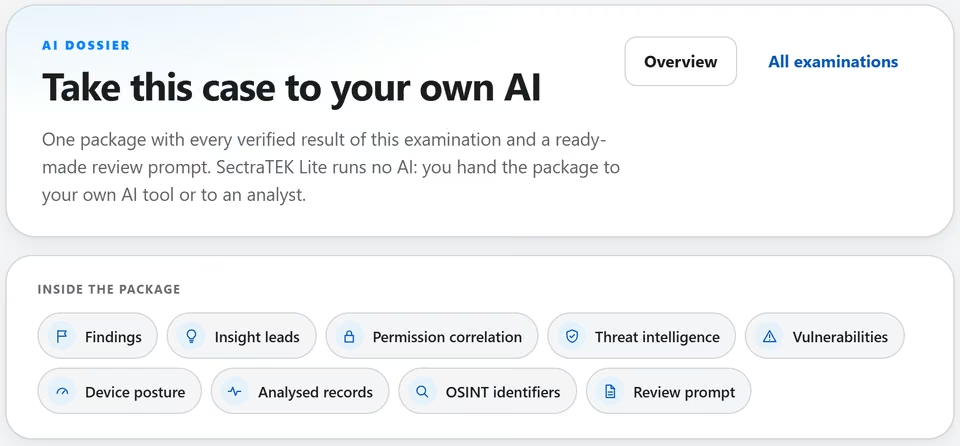
The AI-Dossier carries the whole examination to the AI tool you choose: the findings with the examiner's dispositions, Insight leads, threat intelligence matches, exposure and security configuration results, permission correlation, the processing record and the evidence integrity history.
The AI-Dossier includes a ready-to-use prompt written for the type of evidence examined, so the AI tool you choose knows how to read it and what to write.
Evidence references stay with the AI-Dossier: every file in it is listed with its hash, and its instructions ask the report to tie each material statement to the records behind it.
The AI-Dossier's instructions ask the report to separate evidence from inference, weigh benign explanations, keep contradictions and limitations in view, and never treat a result with no findings as proof that a device is clean.
When a client complaint is attached to the case, the AI-Dossier carries it and the instructions ask for the report to be built around the client's concern; without one, the report is framed as a general device compromise assessment.
SectraTEK prepares the AI-Dossier on your computer and does not send it anywhere; case data leaves your machine only if you choose to give the dossier to an AI tool or an analyst.
Files are opened read-only where they are stored. Nothing is copied into the product.
A SHA-256 hash of the evidence is recorded in the case before analysis starts, and a final check near the end confirms the evidence still matches.
9f86d081 884c7d65 9a2feaa0 c55ad015 (sample)Case actions, including examiner decisions, go into the application audit ledger, so you can show who did what and when.
The report names the evidence it covers, so the work can be followed from evidence to conclusion.
There is no functional difference between them: the same detection engines, the same intelligence, the same verified results. What differs is the workspace around the results. Lite keeps the results. Full keeps the case.
Full keeps the case. The complete workspace for the case. You work the case inside SectraTEK.
From $2,500 a year, one seat
Lite keeps the results. The fast lane from case creation to report.
From $1,500 a year, one seat
| Feature | SectraTEK Lite | SectraTEK Full |
|---|---|---|
| The same in both editions | ||
| Detection engines | All eight engines | All eight engines |
| SectraTEK Intelligence | Included | Included |
| Evidence handling | Referenced in place, read-only | Referenced in place, read-only |
| Graded results with plain-language explanations | Included | Included |
| Complete AI dossier | Included | Included |
| Support | All support is priority | All support is priority |
| The workspace around the results | ||
| Case overview | Summaries and excerpts, in one clear overview | Overview and full workspace |
| Findings | Included in the report and overview | Full workspace, with examiner review |
| Insight | Included in the report and overview | Full workspace |
| Permission and access correlation | Included in the report and overview | Full workspace |
| Threat intelligence pages | Included in the report and overview | Full workspace |
| Analyzed data and processing logs | Included in the report and overview | Full workspace |
| File explorer and tags | Included in the report and overview | Full workspace |
| Integrated AI assistant | Your complete AI dossier, for the AI tool you choose | Full workspace |
| Report builder | The complete AI dossier is your deliverable | Choose the sections and the case information of your own report |
| Multiple user accounts and collaboration | One examiner, in and out quickly | Full workspace |
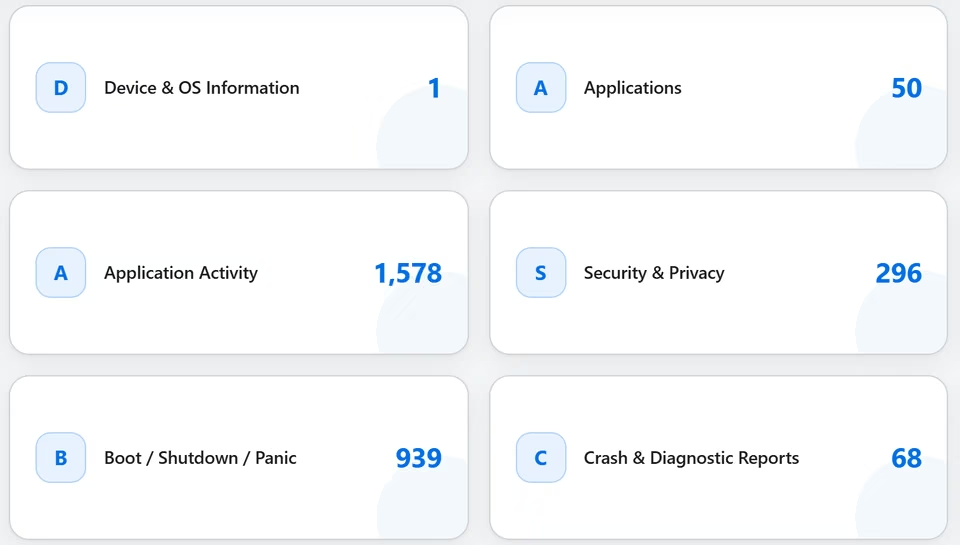
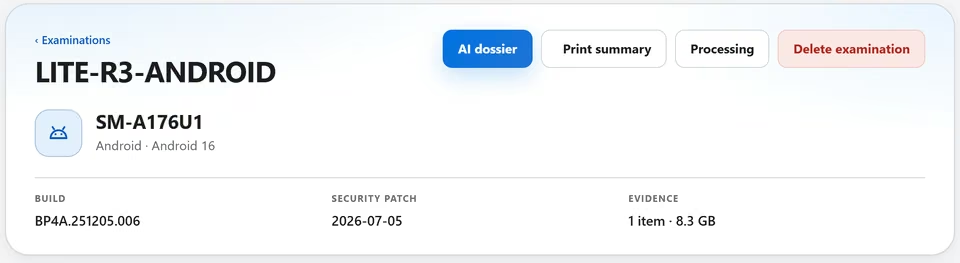
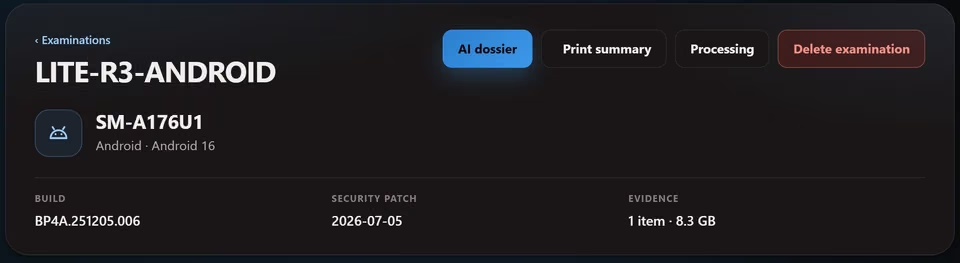
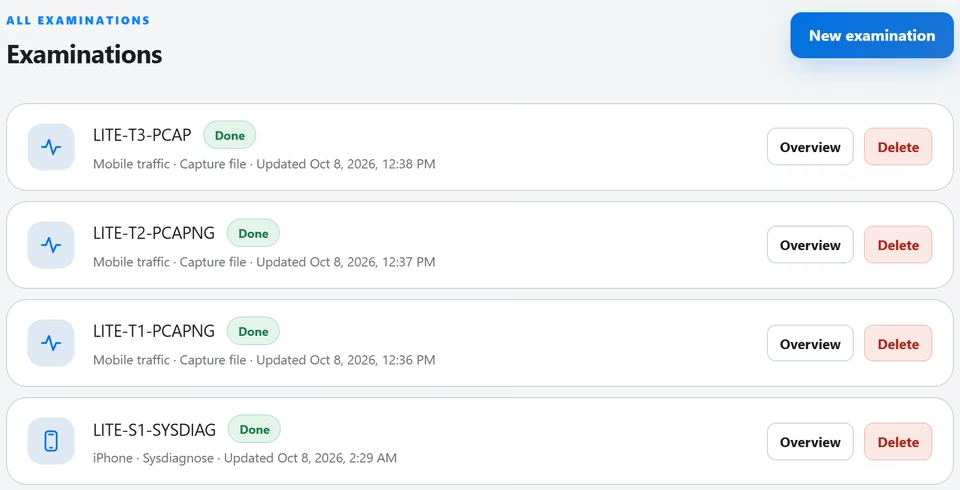
From case creation to results in a few focused screens. These are its own screens.
A pre-configured, ruggedized tablet that arrives ready to use. $5,500, hardware plus the first-year license, with SectraTEK Full.
SectraTEK works from files you already have, and your evidence stays with you.
Schedule a demo, or request a quote. Your SectraTEK contact takes care of the rest, including payment.